R and Apteco
Apteco's R integration lets you run and score R models on FastStats data directly within FastStats. This makes it ideal for model evaluation and scoring.
Note
The R integration currently supports R version 3.5.3 only.
Key features:
- Scoring models: run R models on FastStats data and score FastStats records using the resulting model coefficients.
- Model evaluation: evaluate R models alongside others in the FastStats Modelling Environment, including those created with built-in tools.
- R code integration: execute R code that incorporates FastStats data for enhanced analytical capabilities.
Note
- You can only use models supporting the
PMMLformat. - Once you run a model, its coefficients stay fixed. Updating the model with new data requires re-running it, though you can still score new records with the existing model.
- The performance of running R code that incorporates FastStats data may vary when using
RCallandRScriptexpressions. - You can evaluate models through pre-defined R Markdown reports, but interactive model exploration in an R console is impossible.
For further R documentation in the FastStats user help:
Install R for Windows
- Go to https://cran.r-project.org/bin/windows/base/.
- Select Download R-x.y.z for Windows.
- Run the installer using default options.
Install Rserve
-
Run R for Windows as Administrator.
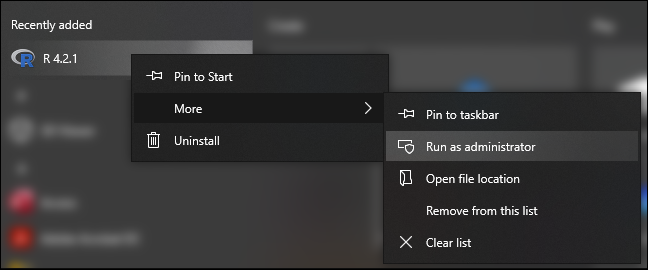
Note
To run R for Windows as an Administrator, you need Administrator privileges. This is necessary to write to the default installation location for R packages. If you encounter any issues, see here for troubleshooting.
-
Run
install.packages("Rserve").Note
'Rserve' is case-sensitive.
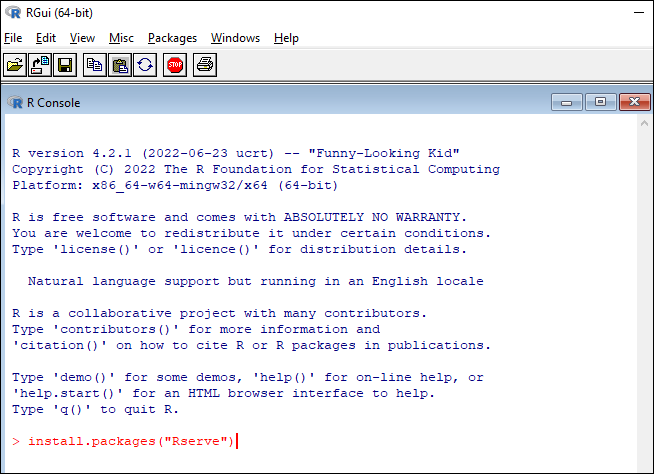
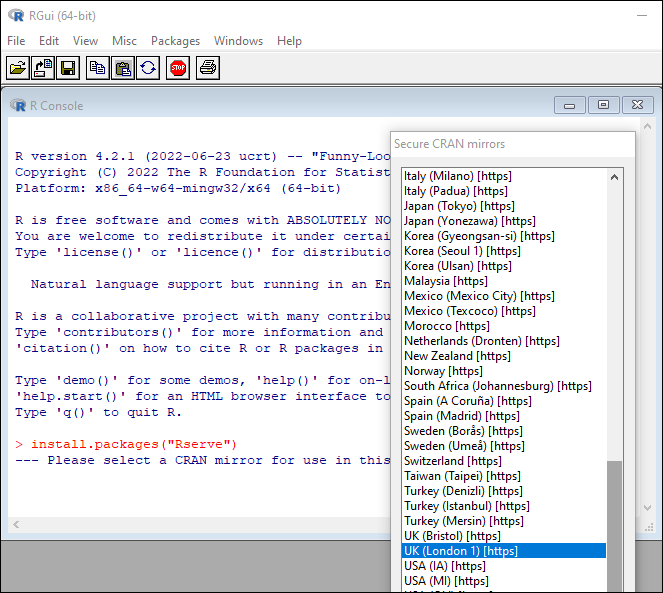
Next, select a mirror from the Comprehensive R Archive Network (CRAN). Choose a mirror in your country or one that's close to your location.
-
This installs Rserve as a package. Complete a few additional steps to finish the installation:
-
The R console displays the saved location of the binary zip file (e.g.
C:\Users\AppData\Local\Temp\Rtmp06VqMr\downloaded_packages)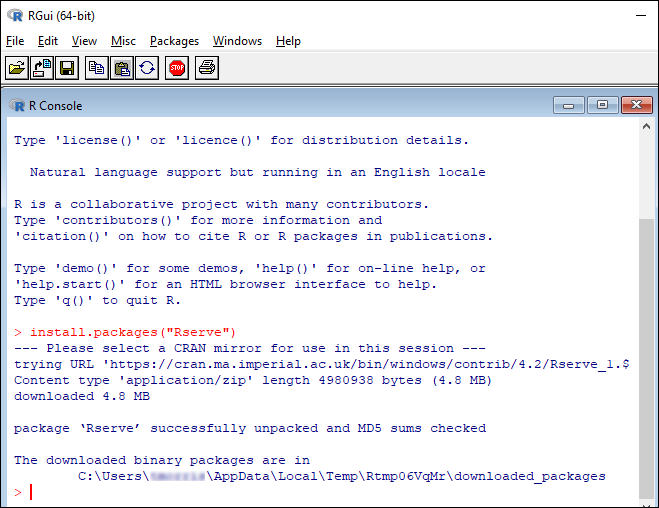
-
Locate
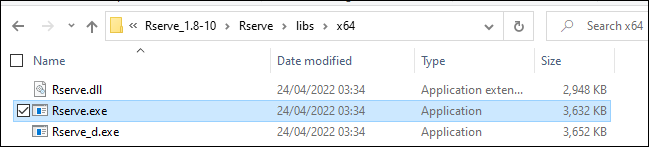
rserve.exein the zip file (e.g.Rserve_1.8-10\Rserve\libs\x64)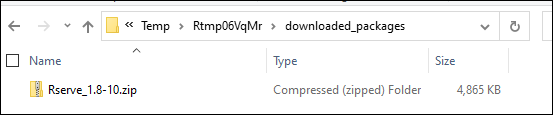
-
Copy this to the directory that contains
r.dll(e.g.C:\Program Files\R\R-3.5.3\bin\x64)
-
Configure the FastStats service
- In the FastStats Configurator, go to the R Integration section (under Integrations). Change the R Serve Program Files Directory to the same location as the previous step, for example:
C:\Program Files\R\R-3.5.3\bin\x64. - Select Test to check if the integration is correctly set up.
- Restart the FastStats service before using the functionality in FastStats.
Troubleshooting
If testing the RServe setup in the FastStats Configurator fails:
When RServe runs, it attempts to use the R_HOME environment variable to automatically detect the latest installed version of R. If that environment variable isn't set, it falls back to using registry keys created when you install R. However, uninstalling any version of R removes these registry keys, even if other versions remain on the system.
If testing the RServe setup fails, check whether these keys exist as expected. This is especially relevant if you have previously removed other versions of R from your system. Alternatively, change the R_HOME environment variable to the directory where you installed the latest version of R (e.g. C:\Program Files\R\R-3.5.3).
Further details:
- Rserve release notes
- R for Windows FAQ: Does R use the registry?
- StackOverflow: What are R for Windows registry entries used for?
Optional steps
Additional package for creating R models in the FastStats Modelling Environment
Note
Before you begin, make sure you have set up the R integration for FastStats as explained earlier.
- Run R for Windows as an Administrator.
-
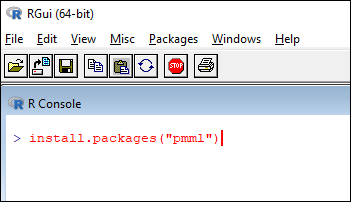
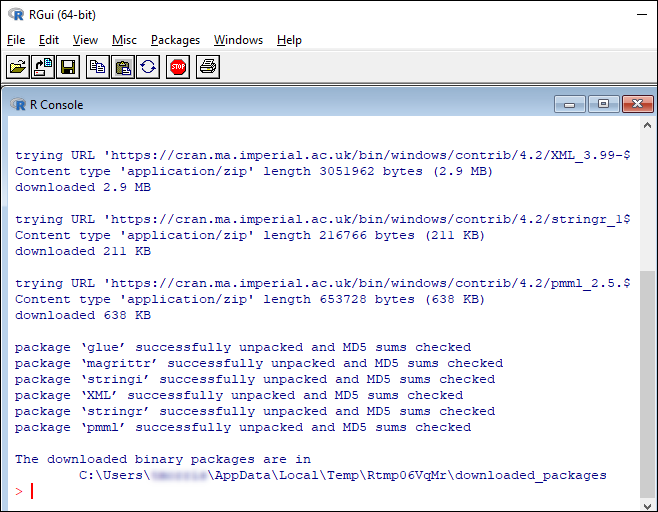
Run
install.packages("pmml").Note
'pmml' is case-sensitive.
Additional packages for creating HTML reports with embedded R code
Note
Before you start, make sure you have set up the R integration for FastStats as explained earlier. Since the HTML reports work by creating R models in the Modelling Environment, you will need to install the 'pmml' package first.
- Run R for Windows as an Administrator.
-
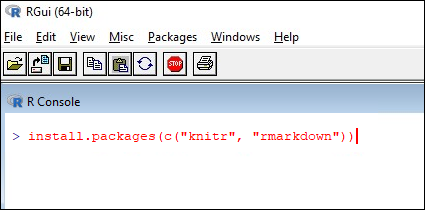
Run
install.packages(c("knitr", "rmarkdown")).Note
The package names are case-sensitive.
R default packages
Some functions require a package that isn't available by default in R on start-up. To use one, you normally need a library() or require() call at the start of your script. This is possible when using the RScript expression, but not for other aspects of the R integration. Examples include using the RCall expression, or running an R model from the Modelling Environment.
To resolve this, you can change the default packages by editing the startup profile file.
- Find the profile file, either at the
R_PROFILEenvironment variable, or atR_HOME/etc/Rprofile.site. -
Add the following command:
where
myPackage1,myPackage2, etc. are the names of the additional packages to load on start-up (this appends to the list of default packages rather than replacing them).
Further details: