Applying patches
At some point you may need to apply a patch to Apteco software if, for example:
- A bug turns up in the software
- An external source, such as Facebook, has made an API change
Follow this guide to help you upgrade your Apteco software.
Note
Each patch is different and the patch notes detail what systems you need to upgrade. See Patch notes for more information.
Determine your current release version
To determine your current FastStats Service version:
- Open the FastStats Configurator.
-
Select FastStats Services.
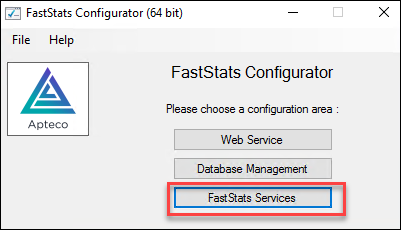
Here you can see the version number and quarterly release under Version. In this example, the release is Q2 2023.
-
Close the FastStats Configurator.
Download the patched software
To get the latest Apteco software, log in to the Apteco website and go to the Software Release section of the portal:
To see which part of the Apteco software a patch affects, select Read the patch notes on the portal. This takes you to the patch notes page on the Help Hub.
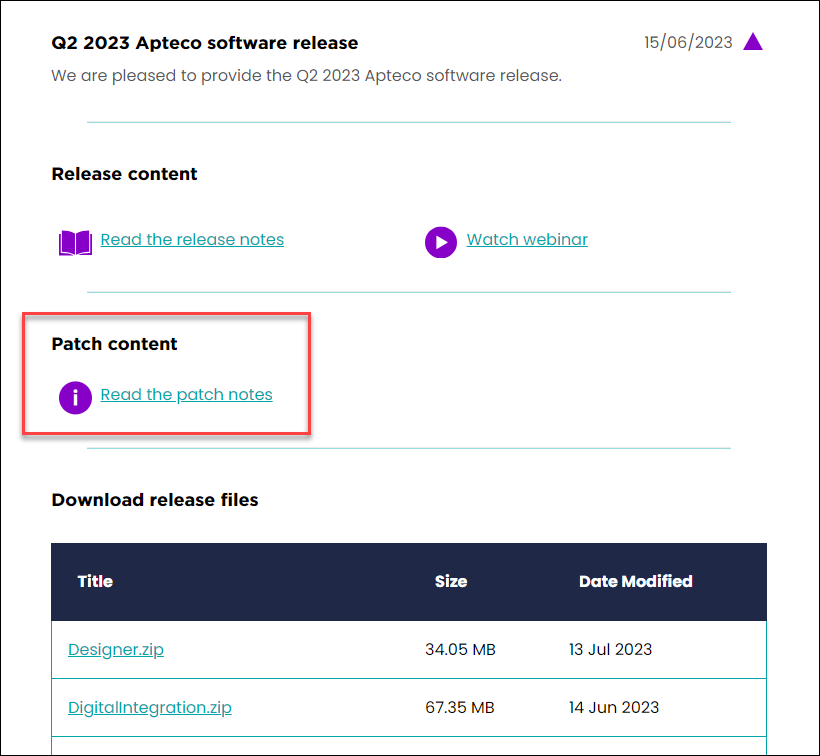
Each patch note details which products of the Apteco software you need to reinstall with the latest version of the release.
Installation files
For patches to the products listed below, download the corresponding .zip file and run the necessary .msi file to install the upgraded version:
- FastStats Designer (Designer.zip)
-
Response Gatherers
- FastStats Email Response Gatherer (DigitalIntegration.zip)
- Facebook Response Gatherer (DigitalIntegration.zip)
- Twitter Response Gatherer (DigitalIntegration.zip)
- LinkedIn Response Gatherer (DigitalIntegration.zip)
- Google Response Gatherer (DigitalIntegration.zip)
-
FastStats Excelsior (Excelsior.zip)
For patches to the products listed below, download the WebService.zip and follow the individual instructions for each of the products:
- Web Service
- FastStats Configurator
- FastStats Service
- FastStats Launcher Binaries
- PeopleStage Launcher Binaries
Applying a patch
Web Service
To install the upgraded version of the Web Service:
- Unzip the WebService.zip on to the server that currently has the Web Service running.
- Browse the to WebService\WebServer\Web Service Installer folder.
-
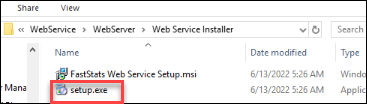
Run the setup.exe.
-
Follow the on screen instructions to complete the upgrade.
FastStats Configurator
Note
You don't need to uninstall the previous version. The install process does this automatically.
To install the upgraded version of the FastStats Configurator:
- Unzip the WebService.zip.
- Browse to the WebService\Configuration Utility folder.
-
Close the FastStats Configurator on the App server, then run the FastStats Configuration x64 Setup.msi file.

-
Follow the on screen instructions to complete the upgrade.
FastStats Service
To upgrade the FastStats Service:
- Install the latest FastStats Configurator, which contains the upgraded version of the FastStats Service.
-
Open your FastStats Configurator and select FastStats Services.
-
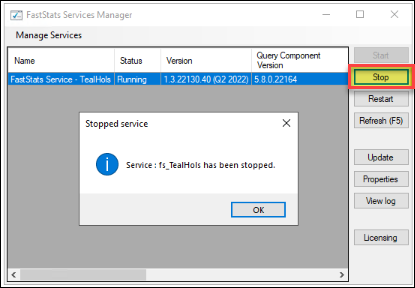
Stop the Service that the patch applies to. From the FastStats Service Manager, highlight the Service and select Stop.
-
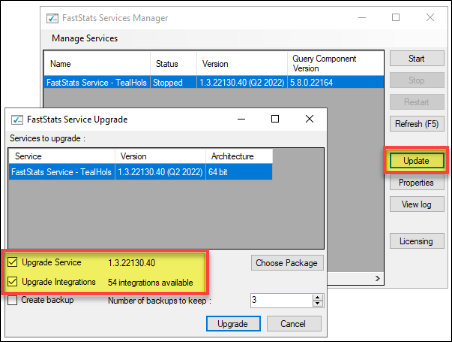
Select Update. The FastStats Service Upgrade box opens with details of the service, including:
- Service current version
- Version that the Upgrade Service moves on to
- Upgrade to Integrations
- Create Backups including number of backups to keep
-
Select Upgrade Service.
-
If the patch includes a change to an integration, such as an Email Service Provider or Social integration, then make sure to check Upgrade Integrations.
-
Select Upgrade. When complete, a confirmation box appears.
- Start the Service again to complete the upgrade.
FastStats launcher binaries
Note
Updating FastStats Binaries lets you apply changes and bug fixes for the FastStats launcher without uninstalling and reinstalling the FastStats launchers. You need to close the launcher and log back in after the upgrade for the changes to apply.
To upgrade the FastStats Binaries:
- Make sure you have installed the latest FastStats Configurator, as this contains the upgraded version of the FastStats Binaries.
- After you upgrade the FastStats Configurator, open it and select Web Service.
-
A Web Service Chooser dialog box appears. If you've used this FastStats Configurator before, it's prepopulated. Otherwise, enter the connection string to the FS_Config database.

-
Select OK.
-
The FastStats Web Service Configuration is now available. To upgrade the FastStats Binaries, select Client Binaries.
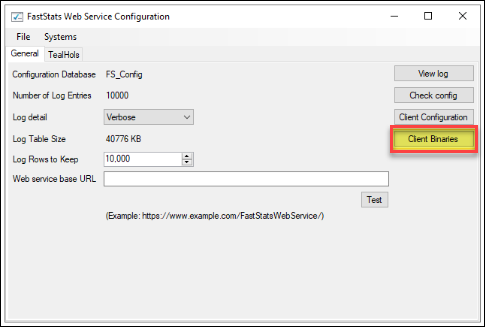
A list of the configured Binaries is now available.
Note
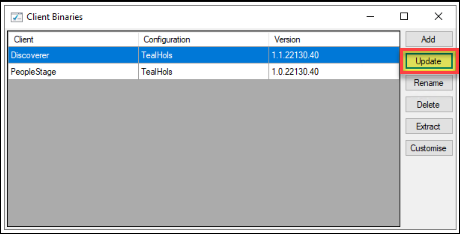
Select the Client Discoverer (former name of Apteco FastStats) for the FastStats Configuration that's having the patch applied, then select Update.
-
Choose the Discoverer Package and select OK.
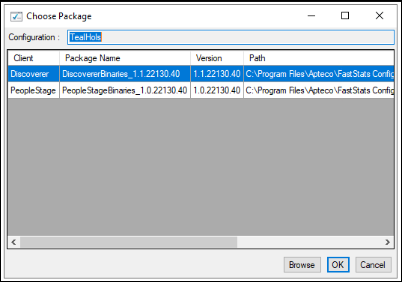
The Binaries start to update.
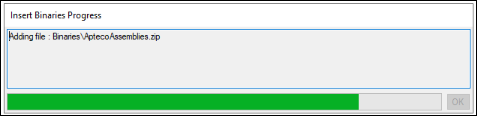
-
Once the binaries finish updating, select OK.
- Close the Client Binaries dialog box.
- Close the FastStats Web Service Configuration. This automatically saves the changes you applied to the binaries.
When you next start your FastStats launcher, it uses the new binaries.
PeopleStage binaries
Note
Updating PeopleStage Binaries lets you apply changes and bug fixes for the PeopleStage launcher without uninstalling and reinstalling the PeopleStage launchers. You need to close the launcher and log back in after the upgrade for the changes to apply.
To upgrade the PeopleStage Binaries:
- Make sure you have installed the latest FastStats Configurator, as this contains the upgraded version of the PeopleStage Binaries.
- After you upgrade the FastStats Configurator, open it and select Web Service.
-
A Web Service Chooser dialog box appears. If you've used this FastStats Configurator before, it's prepopulated. Otherwise, enter the connection string to the FS_Config database.
-
Select OK.
-
The FastStats Web Service Configuration is now available. To upgrade the PeopleStage Binaries, select Client Binaries.
A list of the configured Binaries is now available.
Note
Select the Client PeopleStage for the FastStats Configuration that's having the patch applied, then select Update.
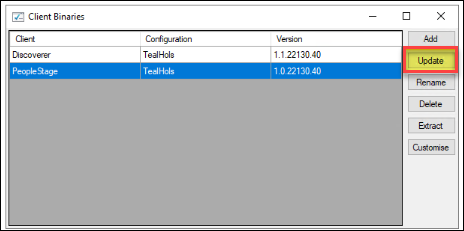
-
Choose the PeopleStage Package and select OK.
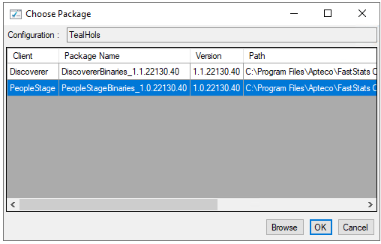
The Binaries start to update.
-
Once the binaries finish updating, select OK.
- Close the Client Binaries dialog box.
- Close the FastStats Web Service Configuration. This automatically saves the changes you applied to the binaries.
When you next start your PeopleStage launcher, it uses the new binaries.
For more detailed Apteco software installation guides, see Installation and updates.