Pre-load actions
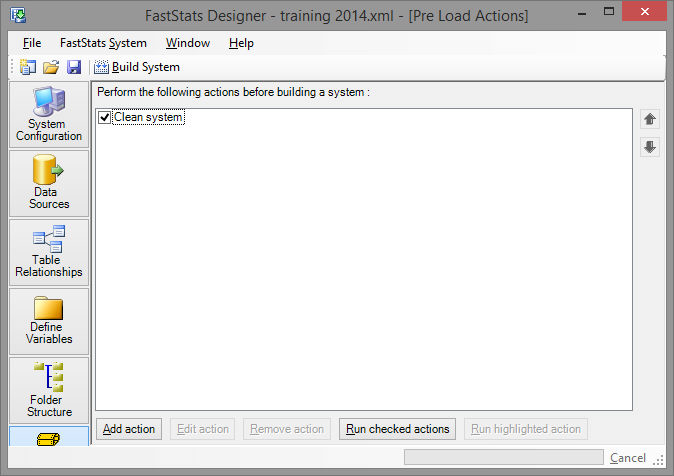
The Pre-Load Actions window lists actions to be run automatically before a FastStats load starts.
- Add action inserts another action into the run list.
- Edit action allows you to change the properties of the currently selected action.
- Remove action removes the highlighted action from the list (does not delete any files).
- Up / Down move the highlighted action to modify the run sequence.
- Run checked actions runs the actions that have a tick next to them.
- Run highlighted actions runs the actions currently highlighted by the cursor.
All actions can be given a description.
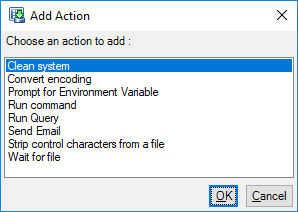
Add an action by clicking Add Action. A dialog will appear showing the available actions — choose one and click OK:
Clean system
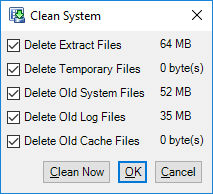
The clean system action removes old files left over from previous builds, including:
- Extract files — temporary files created when Designer extracts data from a database
- Temporary files — temporary files created when Designer builds indexes or other files used during the data load
- Old system files — files that make up an old FastStats system
- Old log files — log files
- Old cache files — cache files created during virtual variable processing
Some temporary files can be re-used on subsequent builds if the incoming data has not changed; cleaning them will reduce load performance in those cases.
Wait for file
The wait for file action checks for the existence of the specified file:
- If the file exists, the build continues
- If the file does not exist, the build waits until either the file exists or the user clicks Cancel

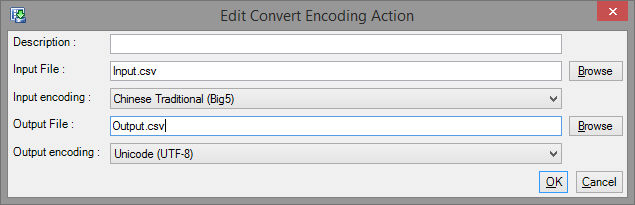
Convert encoding
Use this action to convert an input file from an encoding that Designer does not directly support to one that it does.
Strip control characters
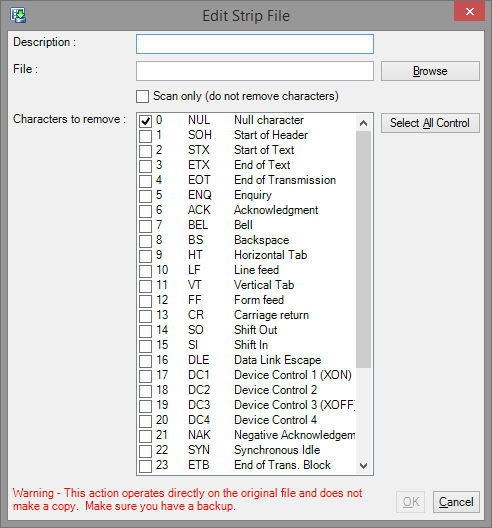
Some input files contain ASCII control characters. This action scans through the input data file and replaces the specified ASCII characters with the space character.
Warning
This action works in-place on the input file and does not make a copy. Be sure not to accidentally strip any delimiter characters your file contains.
A report is added to the progress window detailing the number of control characters found or replaced.
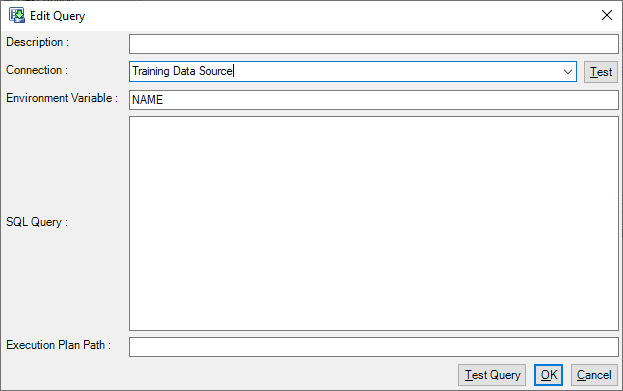
Run query
The run query action causes FastStats Designer to run a database query to retrieve a value for the specified environment variable.
Prompt
The prompt action causes FastStats Designer to display a dialog asking the user to enter a value for the specified environment variable.

Send email
The send email action sends an email to the specified address. This is typically used to inform an administrator that a build is about to start.
Define an email credential on the Credentials tab of System Configuration.
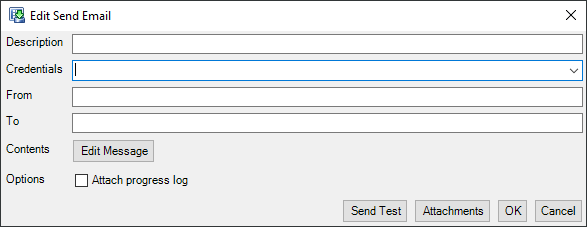
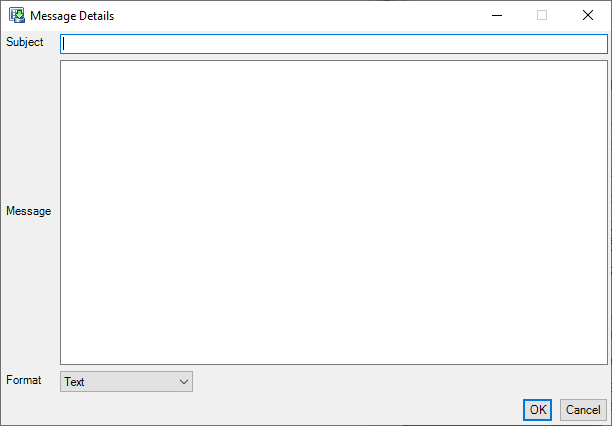
Your message can be entered as text or HTML in the Edit Message dialog:
Command action
The command action allows Designer to run a Windows program or batch command file before the load has started.
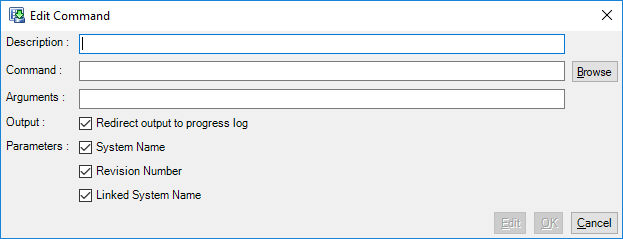
The command runs with Designer's system and user environment variables set, and a number of optional parameters passed.
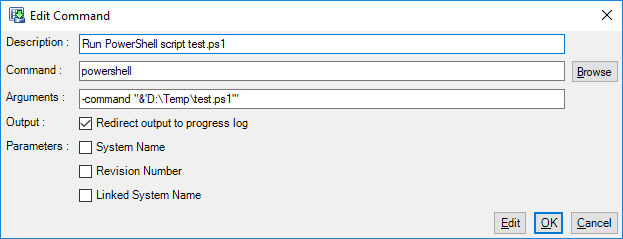
Running a PowerShell script
To run a PowerShell script, turn off the Parameters option: