Privacy by design and by default
The General Data Protection Regulation (GDPR) requires that business processes feature data protection from the first step of any design. Privacy is a core part of Apteco software development. See GDPR Articles 25 and 32.
Pseudonymisation
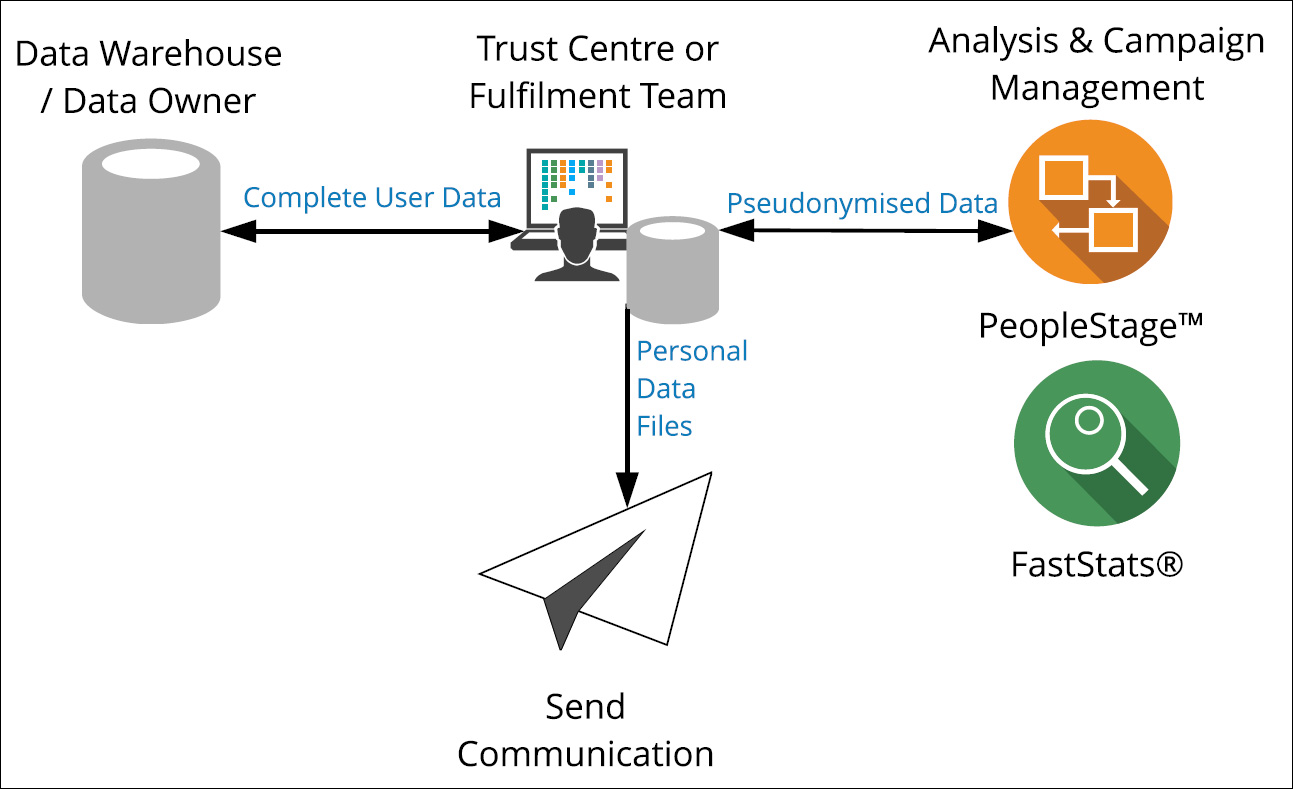
You can separate personal data from analysis variables before loading data into the Apteco software, using a pseudonym as an identifier. You can re-link pseudonymised data with the personal data before sending to the broadcaster or lettershop. You could use an existing variable such as customer number, or a new one (for example, a hash value).
Optionally, organisational separation via a so-called third-party "trust centre" can make this process more robust. However, this adds extra complexity and a potential time lag. You can apply personal data separation in the Data Management or Single Customer View (SCV) step, or immediately after data export. Alternatively, if you don't use a trust centre, you could use organisational separation and allocate functional teams within your company.
Differential privacy
Differential privacy aims to maximise the accuracy of queries from statistical databases while minimising the chances of identifying the natural person behind the records. The following two techniques are available in Apteco software:
Minimum visible count
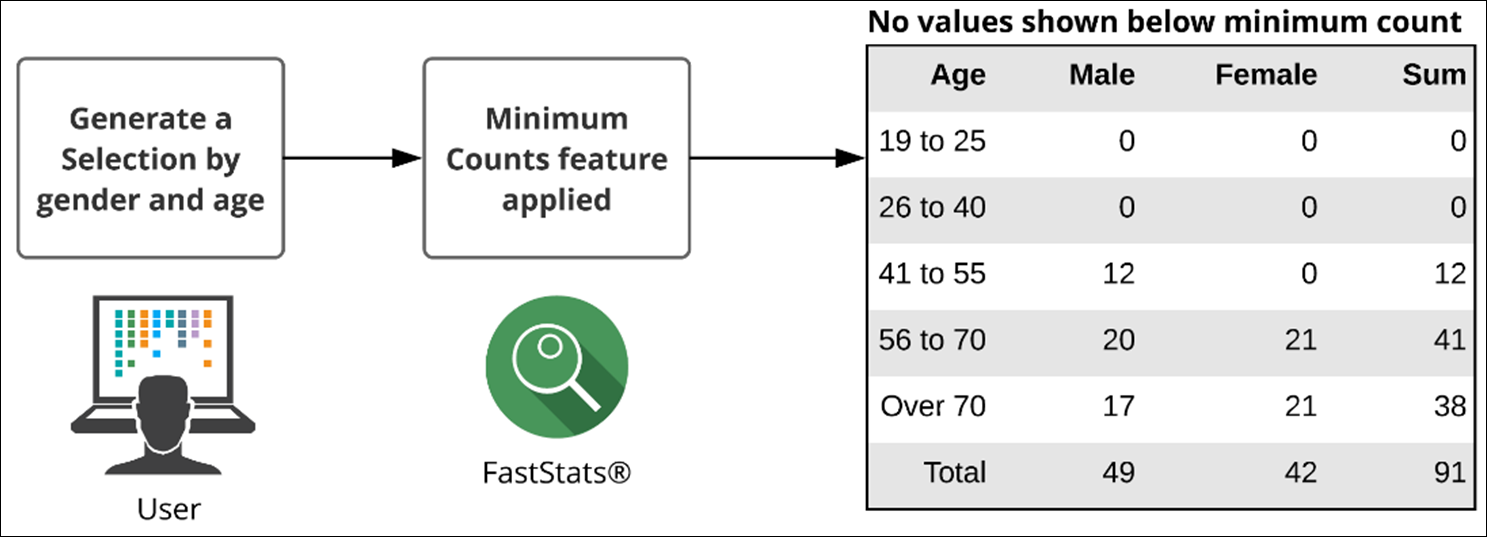
The Minimum Visible Count (MVC) property makes it harder to identify an individual by a process of elimination. For example, in a consumer holiday database, you might isolate a single neighbour by adding criteria such as village, age group, and last destination. MVC makes this harder by hiding any selection count or cube cell count below the minimum (for example, 10). As soon as the count is below the MVC, it appears as zero.
Noise scale
The noise scale property sets the amplitude of "random noise" added to aggregated function results in cube cells (such as sum, mean, or maximum). The idea is to prevent the user gaining information on any individual by introducing a small amount of uncertainty into the results. With a small amount of noise, overall trends should still be evident. The noise emulates a Laplace distribution, giving values more likely to be closer to the correct value. An additional time bias makes it harder to estimate exact figures by averaging multiple analysis runs.
Warning
Only use this feature if absolute accuracy isn't essential.
Configuration
To configure the minimum visible count and noise scale properties:
-
Open the FastStats Configurator.
Tip
Search for Fast in the Start Menu.
-
Select FastStats Services.
-
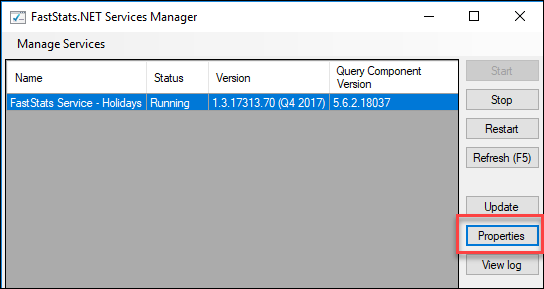
Select the FastStats Service for the system, then select Properties.
-
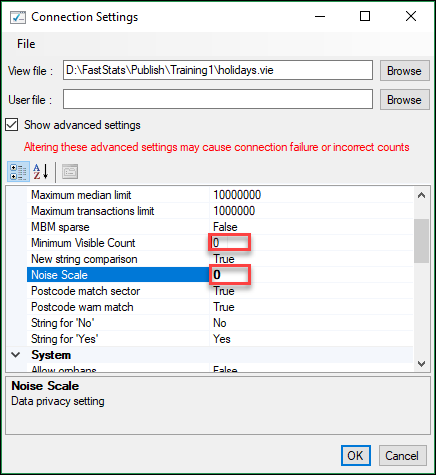
Scroll down to find Minimum Visible Count and Noise Scale.
Note
Enabling noise scale prevents the "Why was I selected?" function from working.
Data minimisation
Data processing should only use as much data as necessary to accomplish a given task successfully. The GDPR states that you should adhere to the principle of data minimisation.
Data model
- Pseudonymisation (described earlier) prevents personal data from entering the analysis system upstream of Apteco software. This is probably the most robust technique.
- Minimise exposure to granular personal data by using the combine categories banding wizard in FastStats (for example, Date of Birth → Age banding and removing YY from DD.MM.YY for birthday mailing triggers).
Data retention policy
Each company must define its policy on how long to store data before deleting it. You can manage this in the upstream databases (SCV or CRM).
Data access
You can control access to personal data by restricting who has access to what:
-
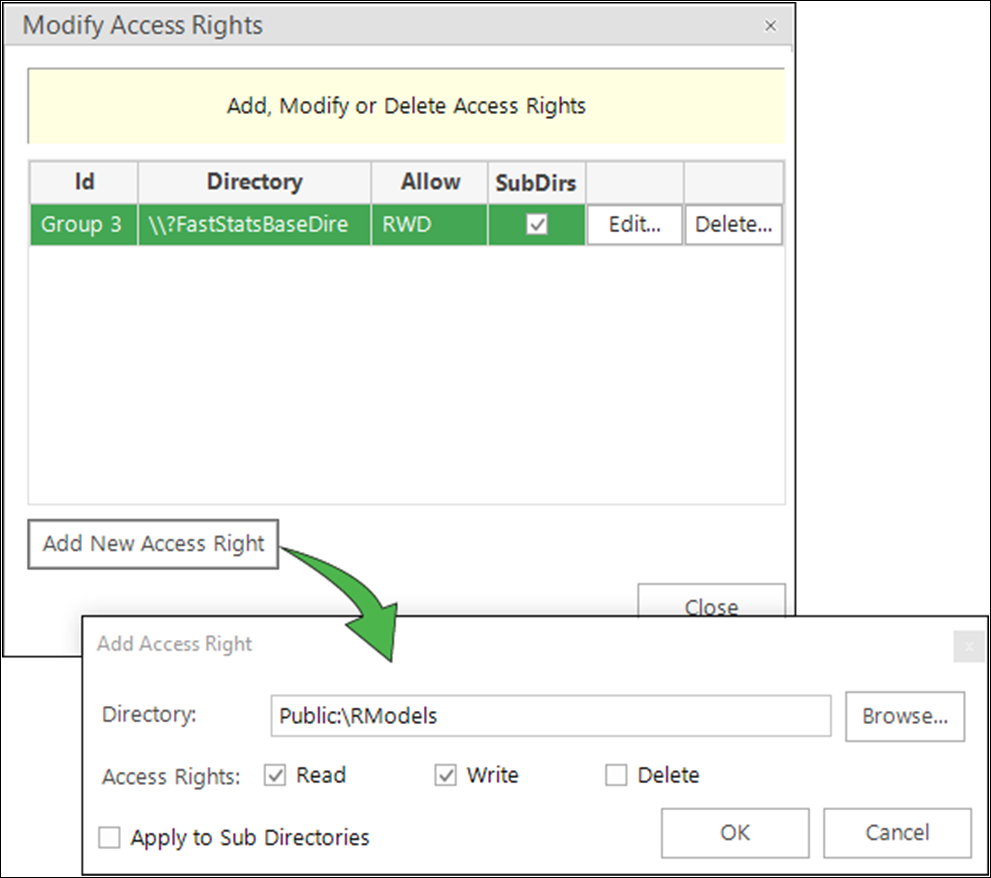
Directory access rights: control a group or user's Read, Write, and Delete permissions at a high level.
-
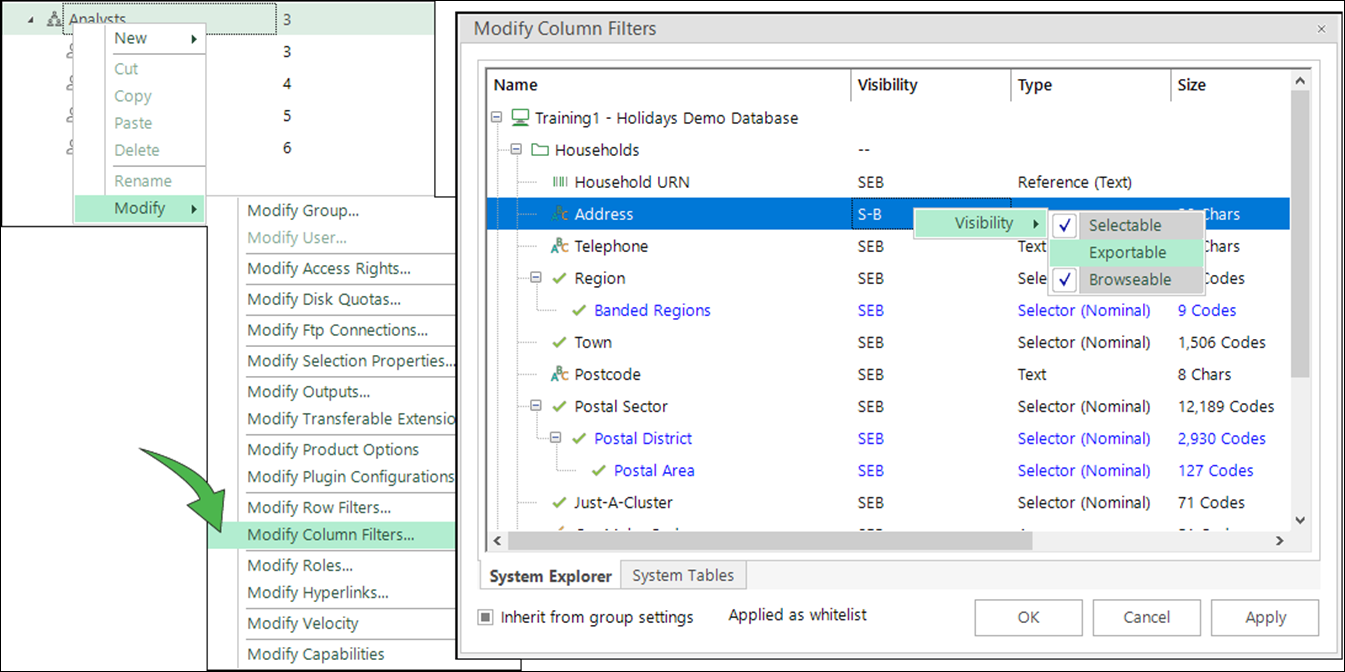
Row and column filters: control whether a variable is Selectable, Exportable, or Browsable (SEB) by right-clicking under the Visibility column for a variable.
Data rights
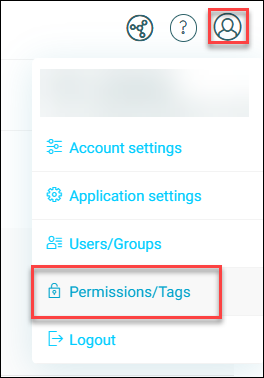
You can apply data rights at the variable level using Designer, limiting the data returned to the user.
Data properties
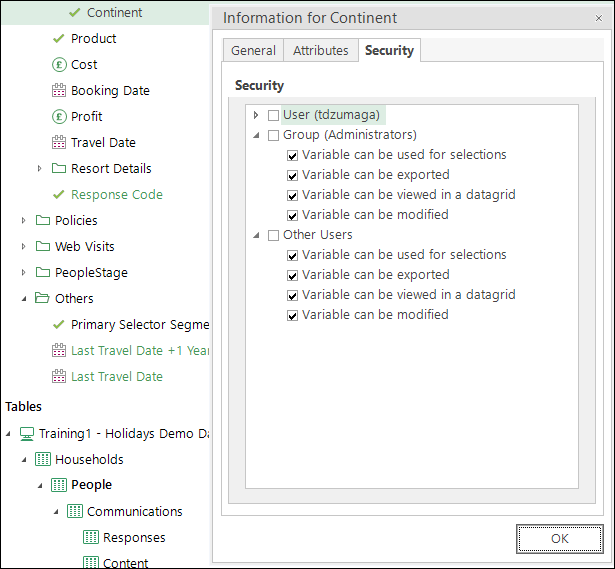
The FastStats System Explorer also lets you limit how you use a variable:
-
Right-click on a variable > Properties > Security.
Export restrictions
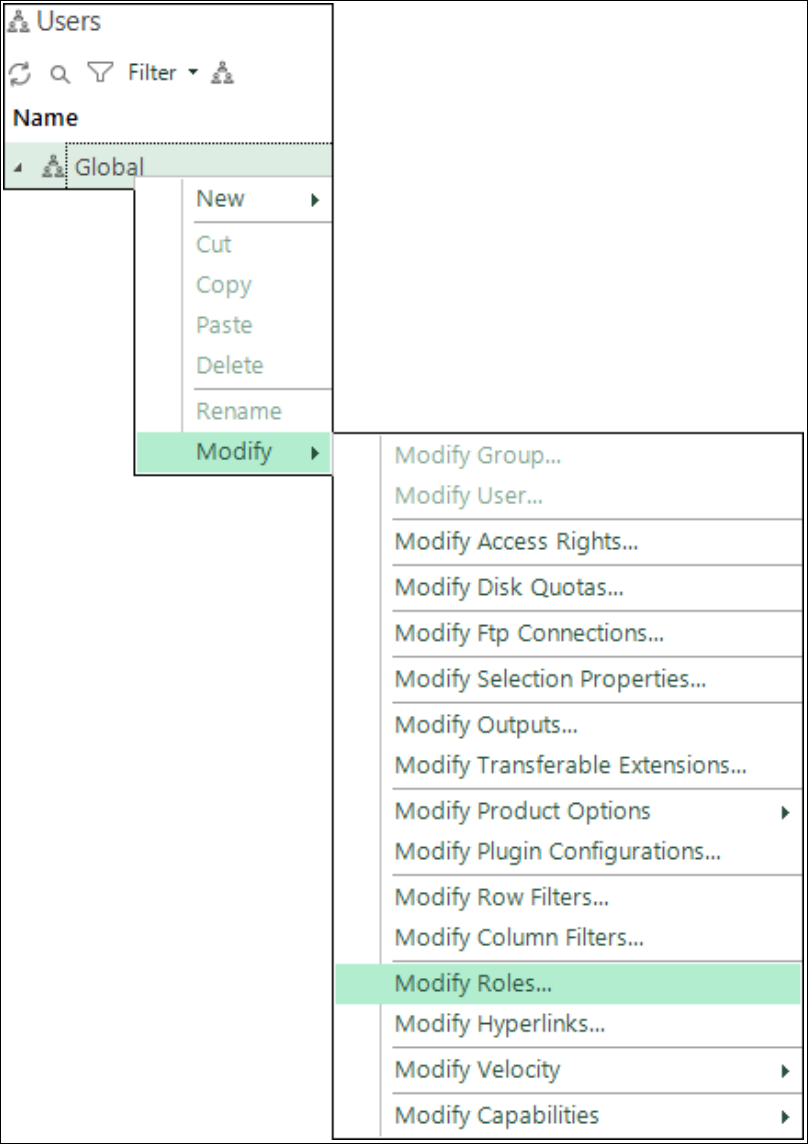
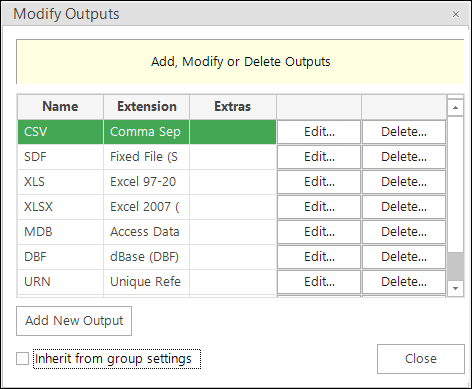
You can restrict the output file types that a user or group of users can export.
You can delete the output option for a file type.
Note
Apteco software exports data to the server, not to the user's PC.
Velocity checking
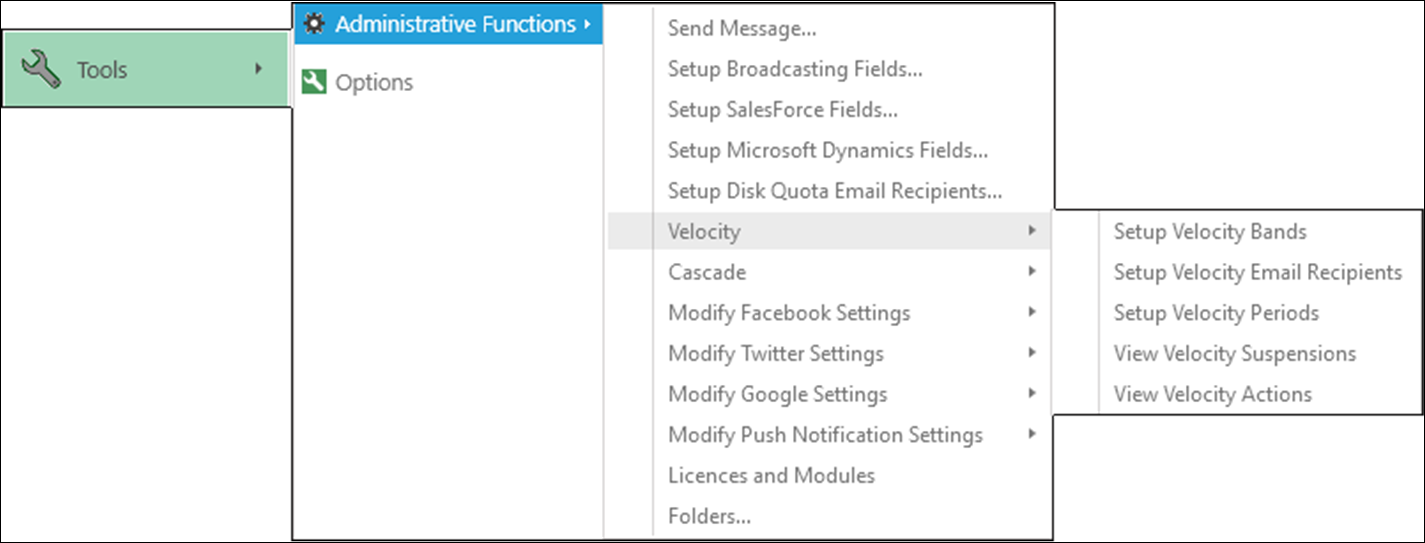
Velocity checking restricts the volumes of data users can export from a FastStats system and the time periods for exporting. If a user exceeds their limit, the system quarantines the export, and the user must ask an administrator for an authorisation code to produce it.
You can also define a size limit for the Sample Download file in the PeopleStage Delivery Step. Find this setting in the FastStats Configurator under FastStats Service > (select the system) > Properties, PeopleStage node.
Audit trails
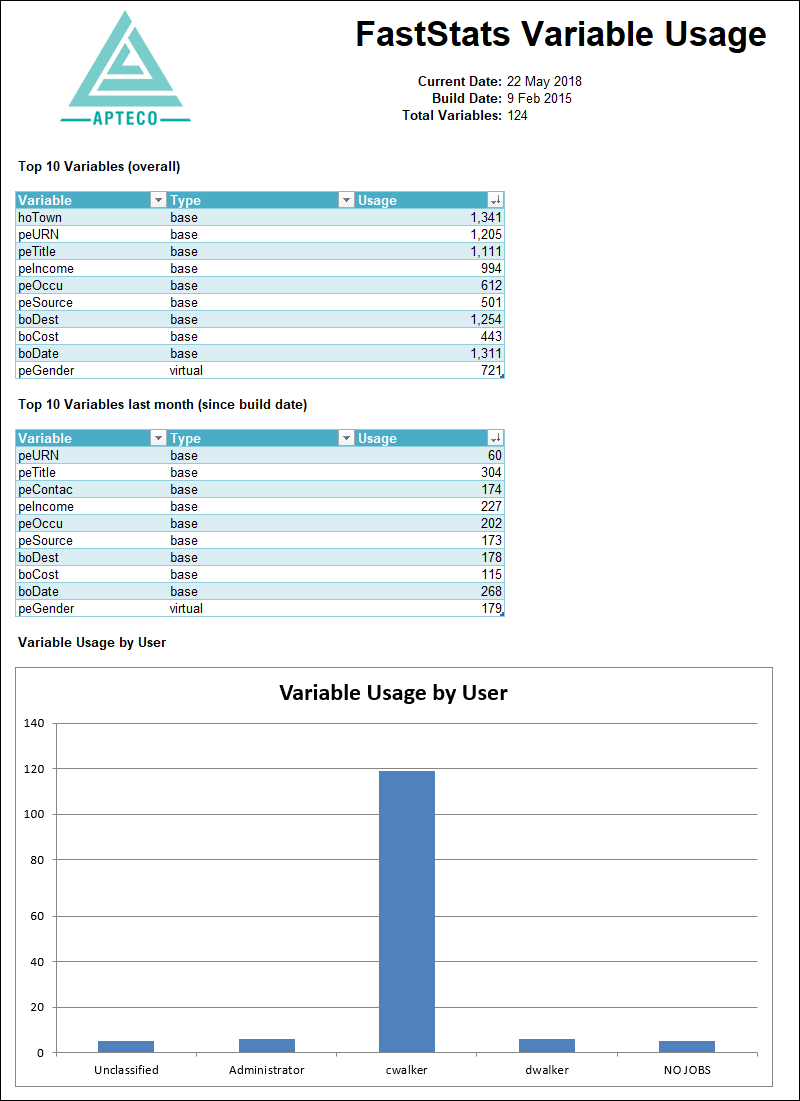
The FastStats Variable Scanner can show what variables you've used, and when. For example, use it to identify variables that you've never or rarely used in any analyses. You should delete these from the data model to support data minimisation.
To use and install the FastStats Variable Scanner, download the Utilities zip and install the Variable Scanner on the same machine as your FastStats system. The scanner analyses one system and creates an output that you use with Designer to build another system. You need Excelsior to generate the reports from the Variable Scanner, so you will need to set up another FastStats system with appropriate licence files.
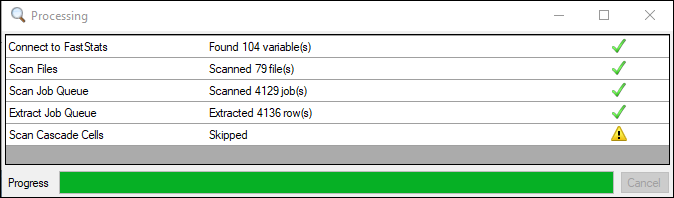
You then perform the analysis in that new system and can view results in Excelsior.
Permission preferences
You manage permission preferences outside of Apteco software. However, you can integrate opt-in preferences into the data model, pulled in from the upstream database.
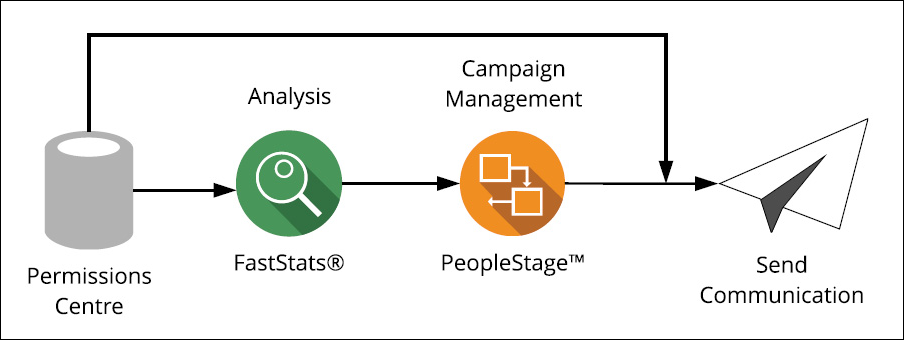
Apply permission preferences in a timely fashion. There's often a time lag between selections and campaign execution (or within a multi-step campaign). Options include:
- Upfront at time of selection, using permission flags in the selection.
- Update of permission flags between data updates in FastStats (for example, every 2 hours through the day).
- Via external variables in FastStats (only works for existing URNs).
- Reapplication of permission at campaign run time in PeopleStage using (Universal) Area constraint filters, for example "Valid E-Mail Opt-in".