Combine audiences
Combine audiences groups your existing audiences, selections, and behaviours into a single custom variable. You define one category per group.
Once created, use it like any other variable in Orbit:
- As a dimension on a dashboard tile
- A filter when building an audience
- A content field in message personalisation
Example use cases
- Grouping several target audiences into one deduplicated variable, so each record falls into only one segment
- Showing a "Supporter value" column chart broken down by category on a dashboard
- Building an audience of just your "High value" category
- Personalising an email by inserting a category description as message content
Selector or array
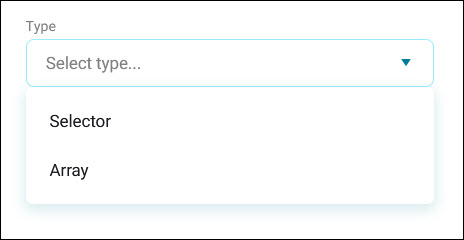
When you create a variable, you choose whether it's a Selector or an Array. Both let you define categories and assign an audience, selection, or behaviour to each one, but they handle overlapping records differently.
Selector
A record can only belong to one category. If a record matches more than one of your categories, Orbit resolves the overlap by taking the highest category in your list. For example, category 1 wins over category 2, which wins over category 3, in list order.
Tip
Order your categories by priority, with your most important audience first. For example, a customer might be both a high value customer and at risk of lapsing. Put whichever segment matters more to you first in the list.
Every Selector variable also gets an Unclassified category automatically, to catch any record that doesn't match one of your defined categories. It's fixed in the first position in your category list, and you can't reorder it.
Array
A record can belong to none, one, or several categories at once, with no deduplication. Use this when categories aren't mutually exclusive, such as recording that someone plays multiple sports, rather than picking their single favourite. Array variables don't have an Unclassified category.
Create a combine audiences variable
To create a new combine audiences variable:
- Open Custom variables.
- Select + New Variable, then Combine Audiences.
-
On the Variable Settings step, complete:
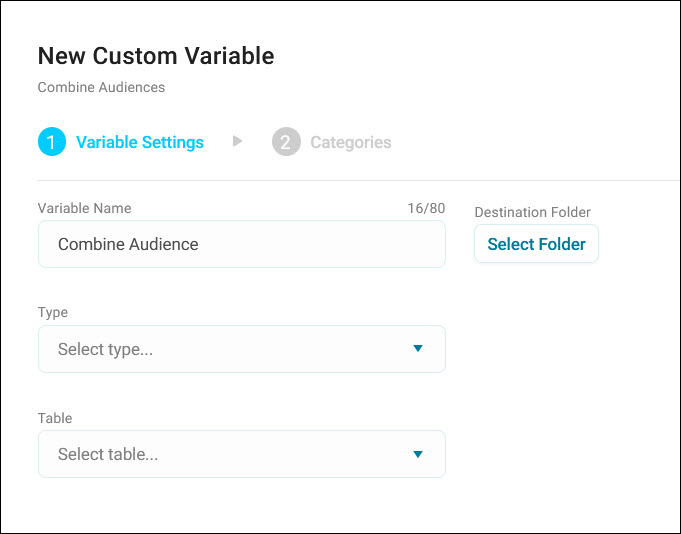
- Variable Name (up to 80 characters).
-
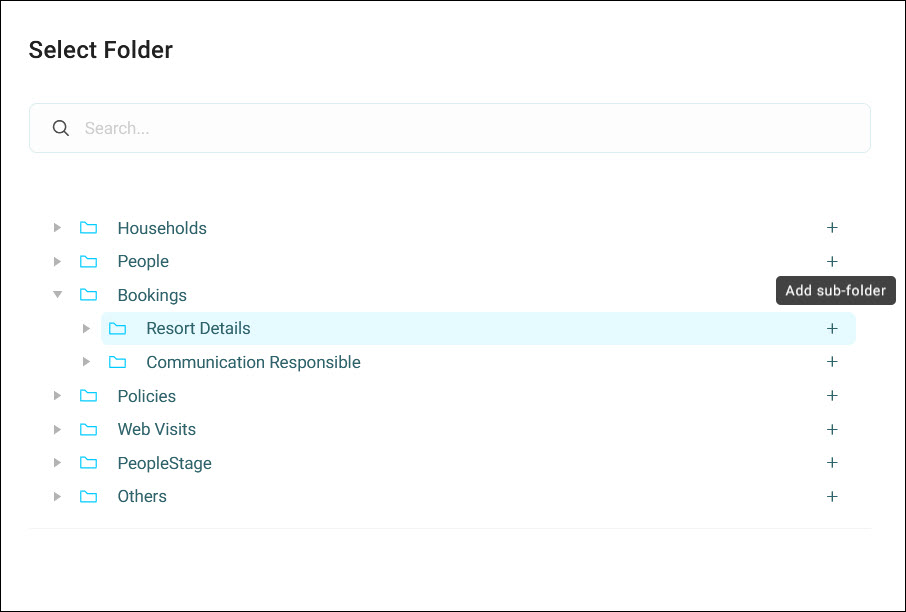
Destination Folder: choose Select Folder, then select a folder to choose it.
Tip
Select the + icon next to any folder to add a new sub-folder there. A newly added folder shows rename and delete icons so you can adjust it before moving on.
Note
If you've chosen the wrong folder, select the bin icon next to your selected folder on the Variable Settings step. This clears it so you can choose again.
-
Type: Selector or Array. If you choose Selector, a Sort Order dropdown appears (Nominal, Ascending, or Descending), depending on whether your categories follow a scale or have no natural order. This step doesn't apply to Array variables.
-
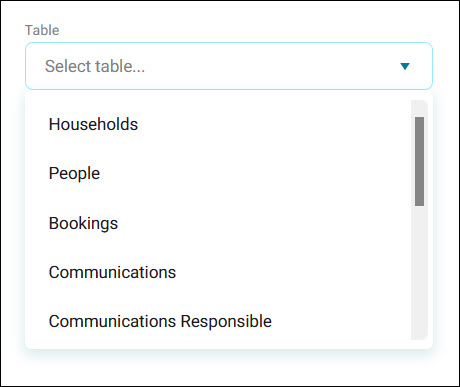
Table: the table to build the variable on, such as People, Households, or Transactions.
-
Select Next.
-
On the Categories step, add a category for each group you want to define:
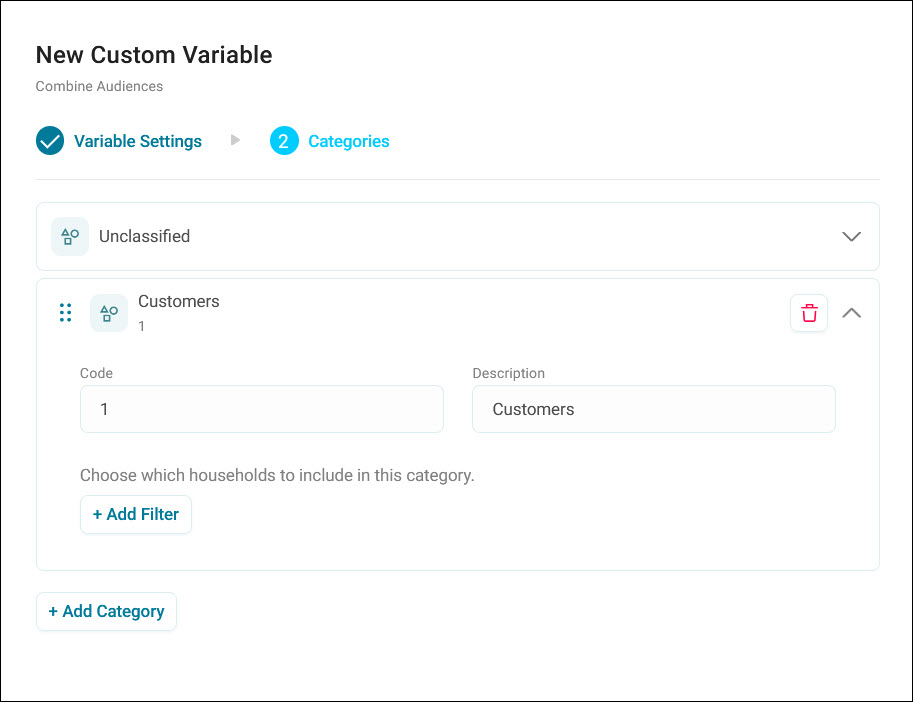
- Enter a Code (text or numeric) and a Description.
-
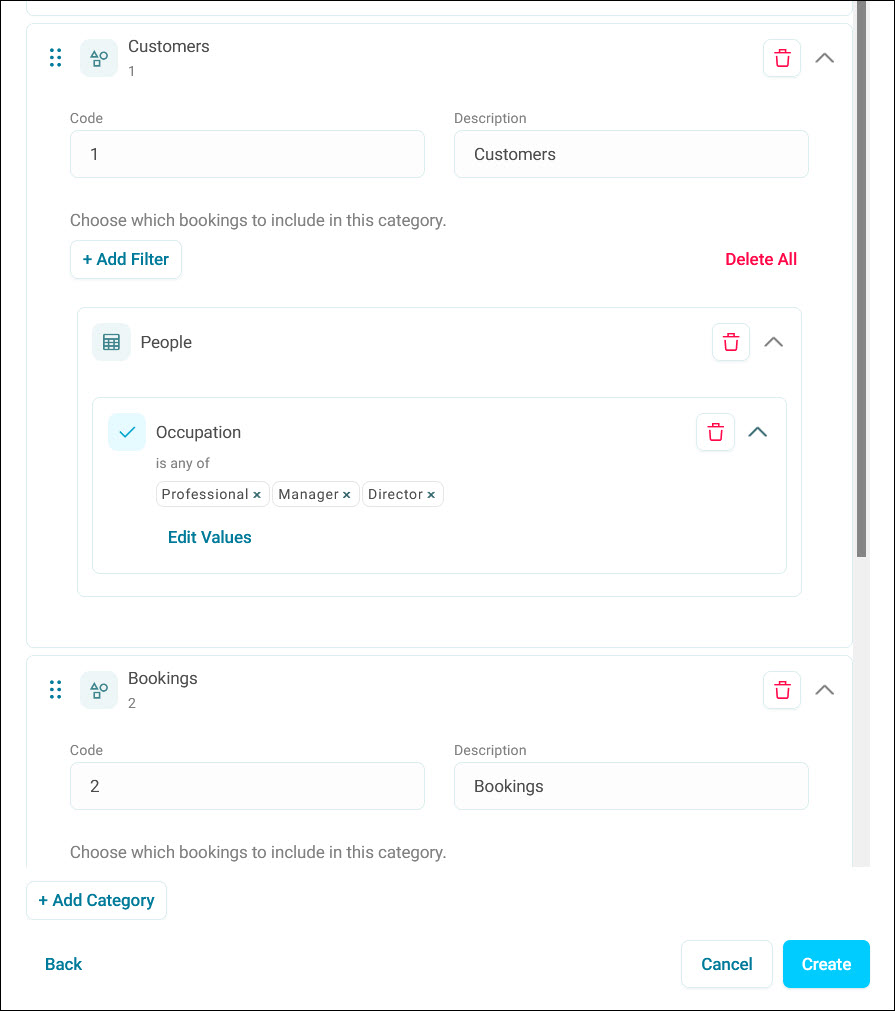
Select + Add Filter to set which records belong to this category. The prompt updates to match your chosen table, for example "Choose which people to include in this category".
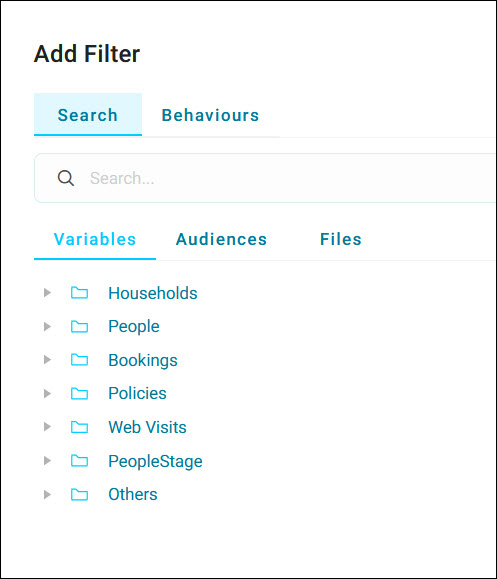
Under Search, choose Variables to build an ad hoc filter (see Filtering), Audiences to reference a saved audience, or Files to reference a FastStats file. Choose the Behaviours tab to reference a behaviour, such as a recency or value threshold.
Note
Referencing a saved audience or file copies its criteria into the category at the point you add it. It isn't a live link. If the source audience or file changes later, the category won't pick up the change automatically. You should update its filter directly to bring it up to date. A date next to the filter shows when you copied it, so you can spot when it might be out of date.
-
Select + Add Category to add another, and repeat for each group.
-
Select Create.
Your variable builds in the background and appears in your Custom Variables list, with its columns populated, once it's ready.
Edit a combine audiences variable
Use the options menu on a combine audiences variable, then select Edit. This reopens the dialog at the Variable Settings step, pre-populated with its current settings.
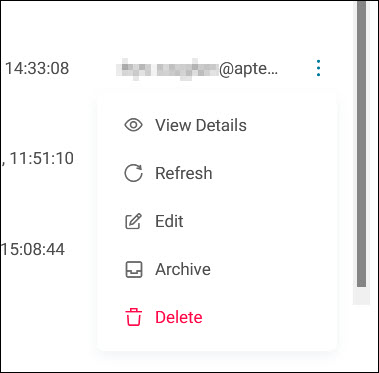
Step through the dialog as you would to create a variable. You can rename it, change its folder, and add, edit, or delete categories, but you can't change its type (Selector or Array) after creation. You'll see a confirmation notification once your changes take effect.
Use a combine audiences variable
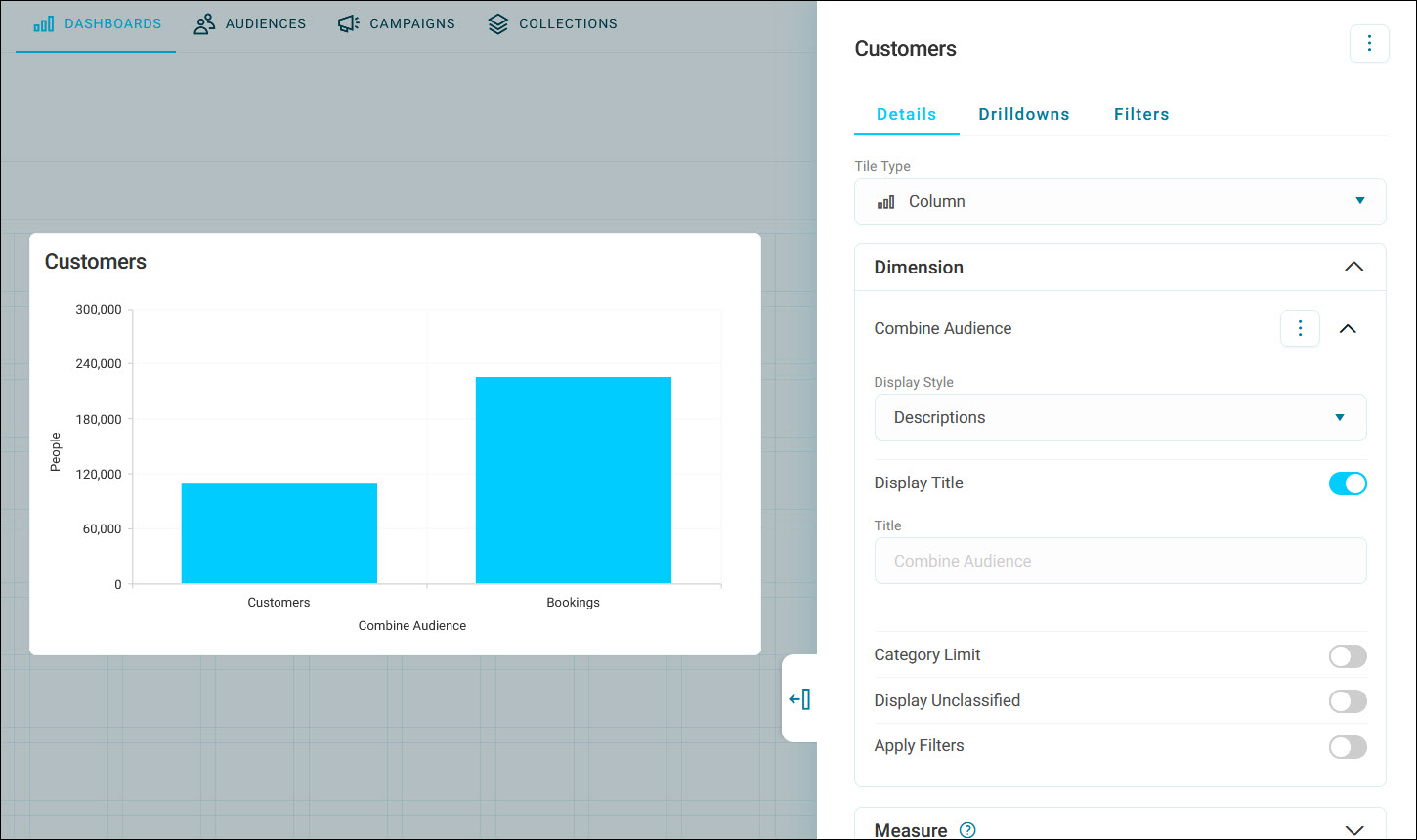
A combine audiences variable behaves like any other variable in Orbit. Add it as a Dimension when adding a tile to a dashboard, using the tile editor to configure how it displays.
Tip
For a Selector variable, toggle Display Unclassified off in the dimension settings to exclude the catch-all category from your chart.
Example use case
Supporter value segments
A charity segmenting supporters ahead of a year-end appeal combines four groups into a single Selector variable, "Supporter value":
- Major donors: a behaviour measuring lifetime giving above a set threshold
- Regular givers: a behaviour measuring recurring monthly gifts
- Lapsed donors: an audience of supporters who haven't given in over two years
- Everyone else falls into Unclassified
Major donors is placed first, so a supporter who's both a major donor and lapsed is still counted as a major donor. Added as a dimension on a dashboard tile, this gives the fundraising team a single view of how their supporter base breaks down, without cross-referencing four separate audiences.
Permissions
Access to combine audiences follows the same rules as the rest of Custom variables.