Microsoft Dynamics 365 data source configuration
Orbit Connect can ingest data from your Microsoft Dynamics 365 Web API by connecting via OAuth.
Note
For end-user documentation in Orbit Connect, see Microsoft Dynamics 365 data source.
Prerequisites
You must register your application within your Azure tenant with the appropriate permissions to access Dynamics 365. You need to obtain the application name and other details from the administrator of your Azure tenant. Use these to configure an MS Dynamics data source within Orbit Connect.
If you don't have a web application registered, complete the registration step first.
Registering a web application in Azure
- Log in to https://portal.azure.com.
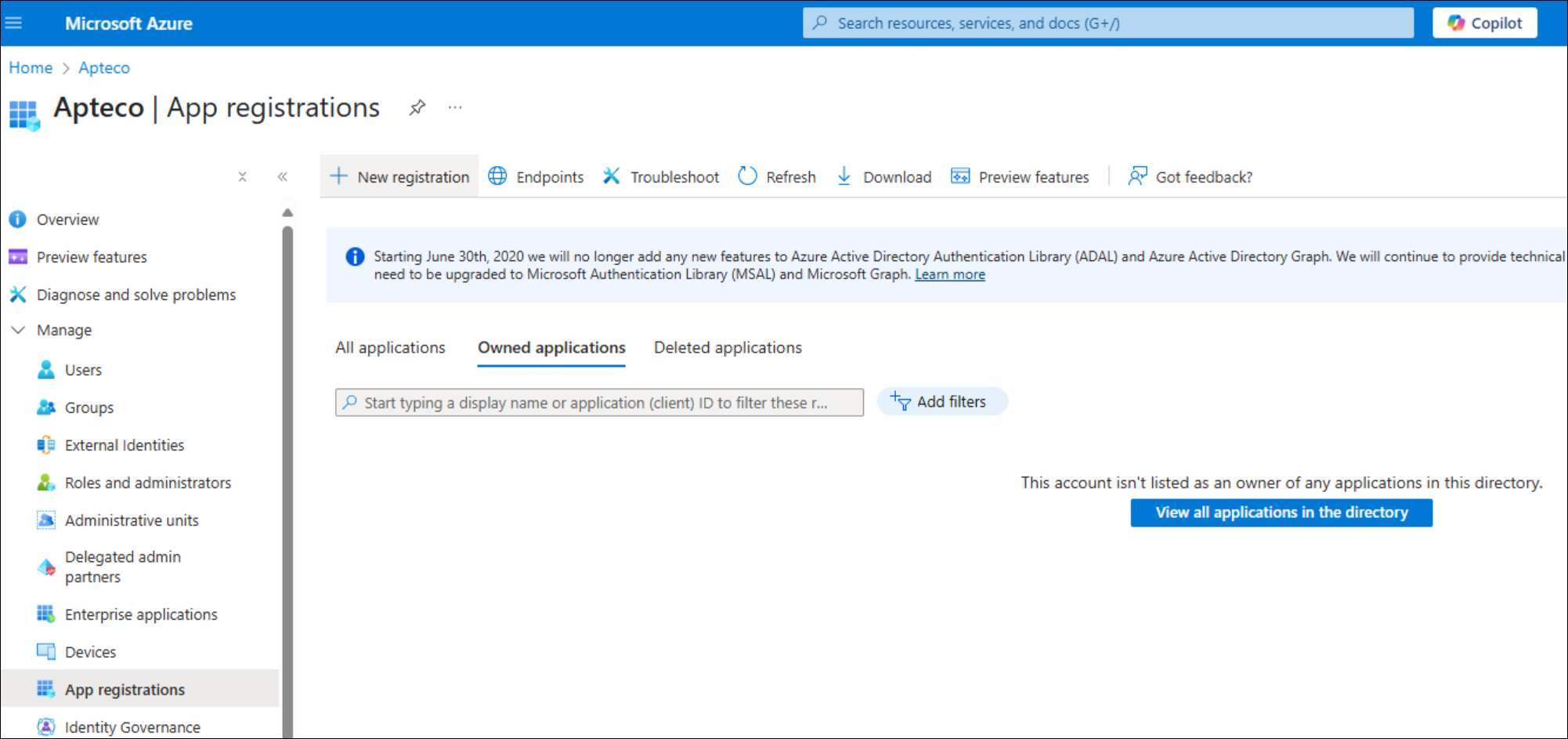
- Navigate to Microsoft Entra ID > Manage > App registrations.
-
Select + New registration.
-
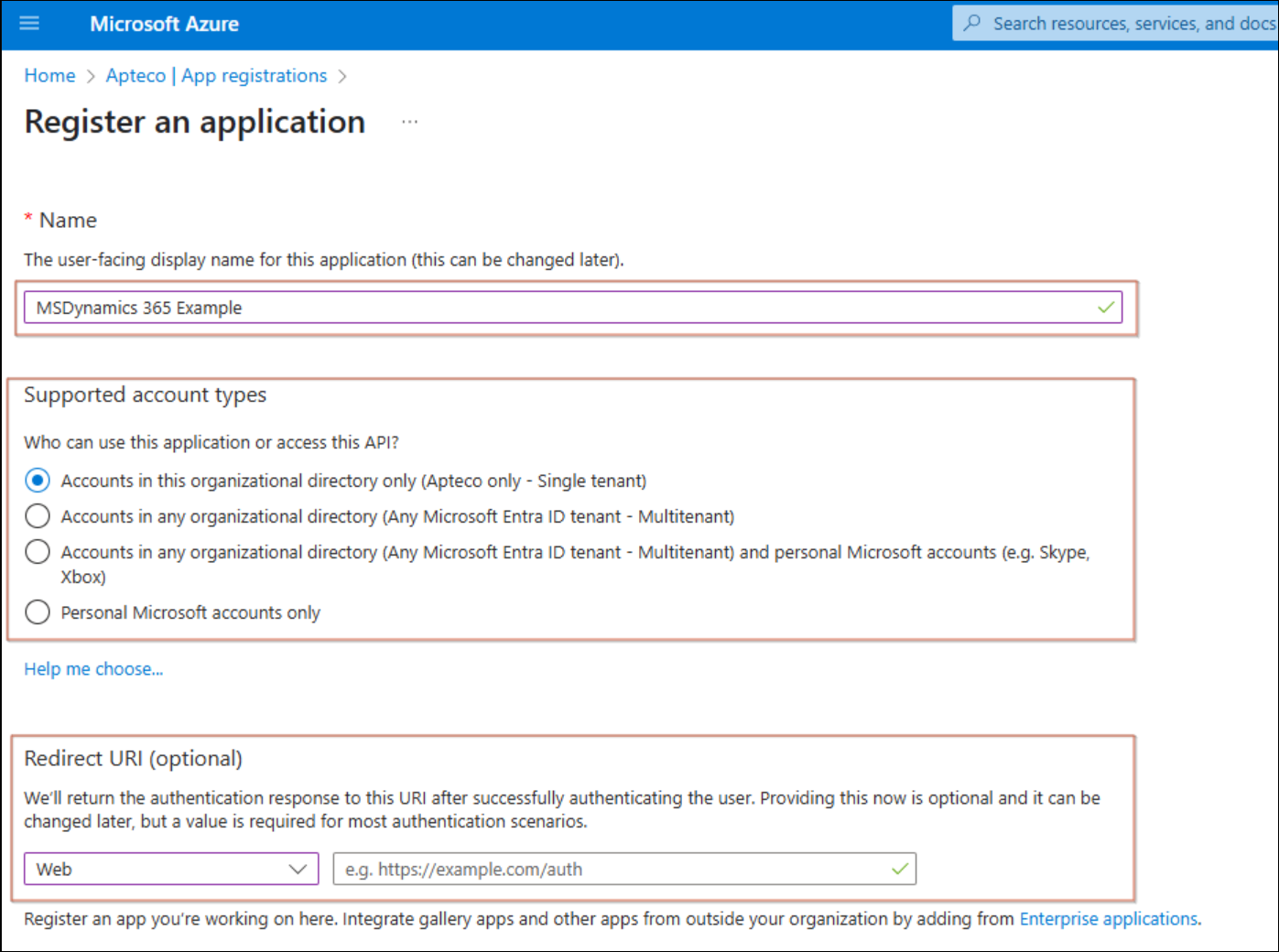
Complete the required details:
- Enter a name for the application.
- Choose Web in the Redirect URI (optional) section.
-
Select Register.
-
Add a certificate or secret to the app.

- Select + New client secret.
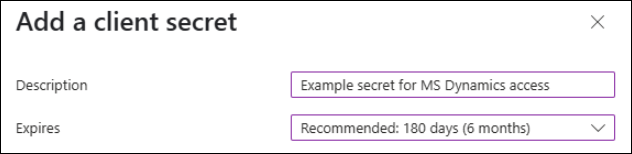
- Enter a description, choose an expiration time, and select Add.
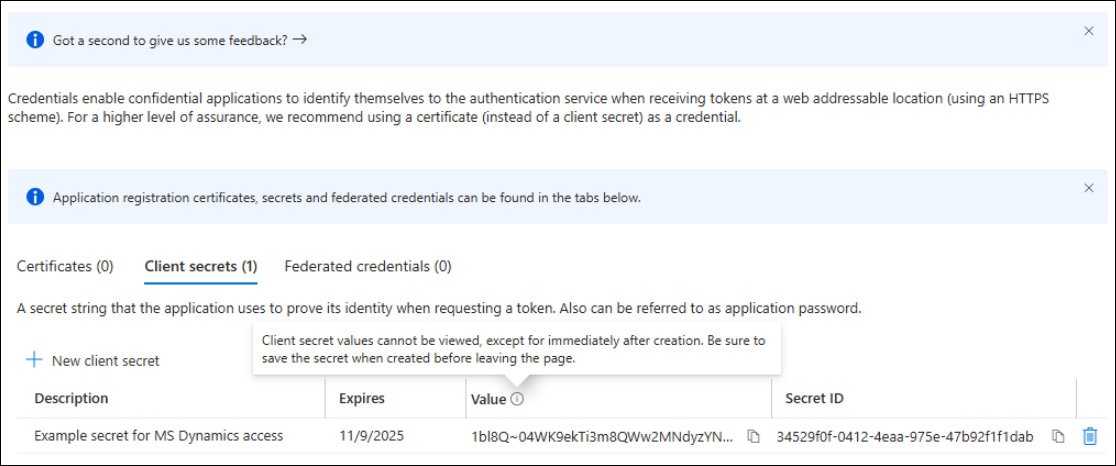
Azure displays the secret on screen as the Value. Copy it immediately using the copy function.
Note
The value is only shown once.
-
To assign permissions so the app can access Dynamics 365, select API Permissions.
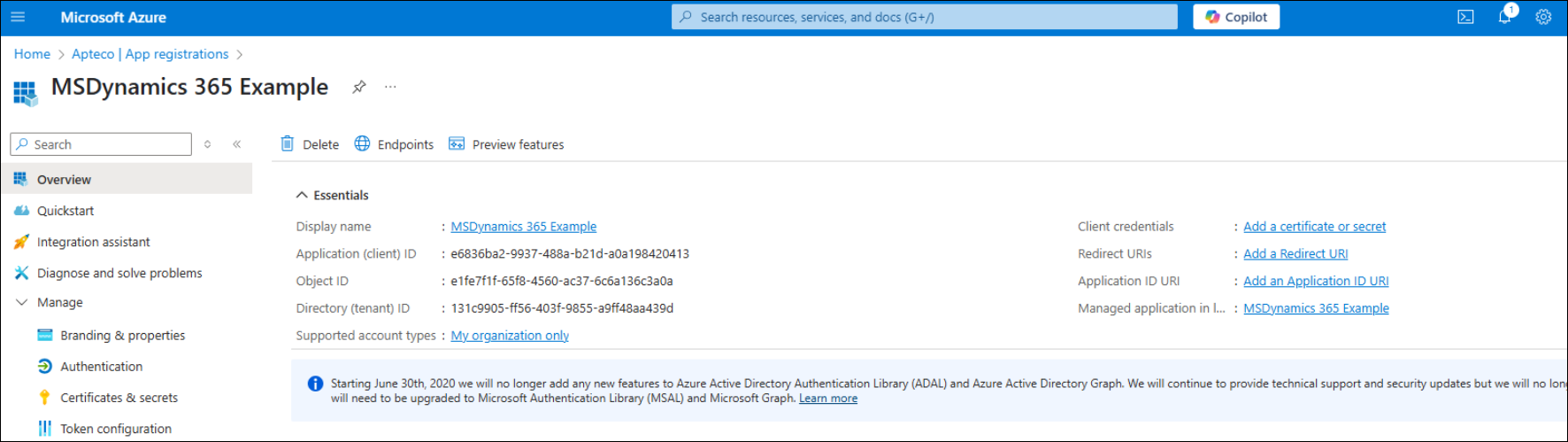
-
Select + Add a permission, then choose Dynamics CRM from the Microsoft APIs shown.
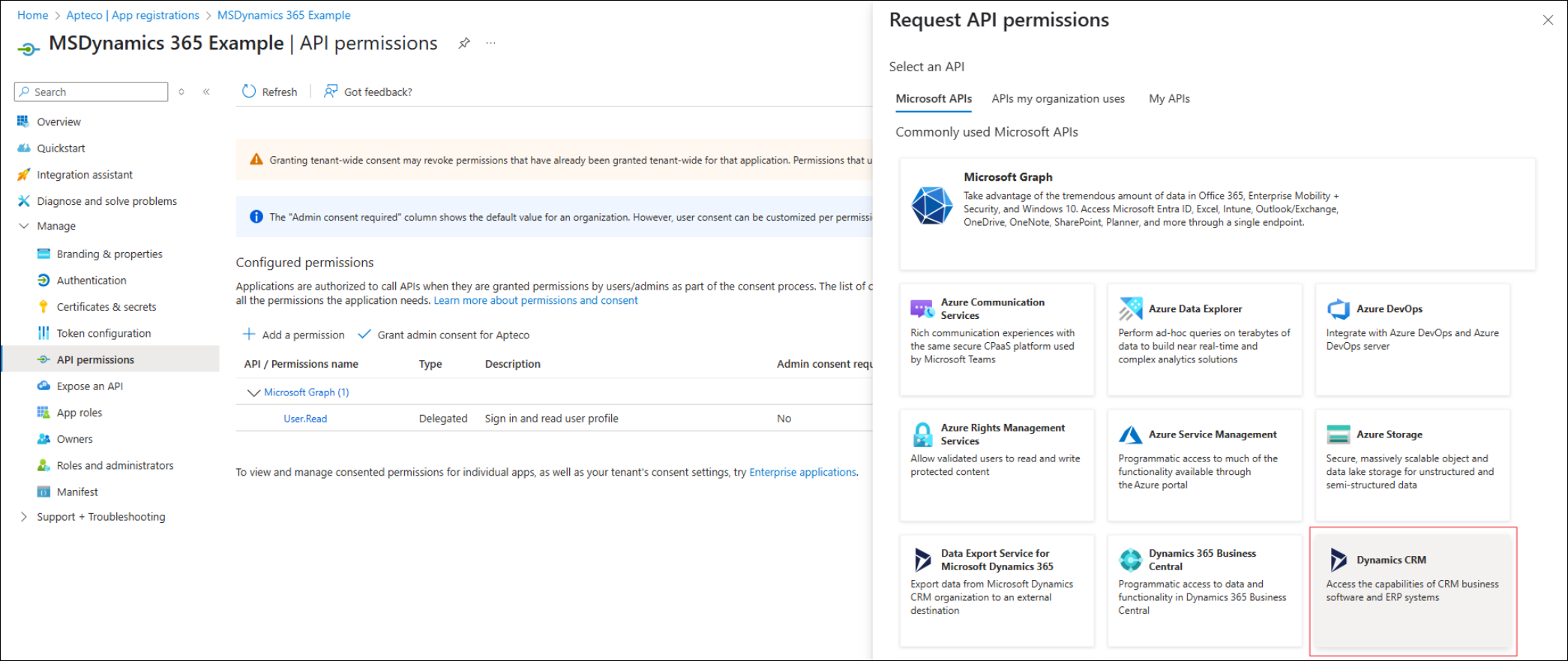
-
Select the option to enable user impersonation.
- Select Add permissions.
- Create a user and assign the app in the Power Platform admin centre: https://admin.powerplatform.microsoft.com/
Finding your Azure tenant ID
- Log in to https://portal.azure.com using your Microsoft credentials.
-
In the search box, type tenant and choose Tenant Properties from the results.

-
Copy the Tenant ID to your clipboard.
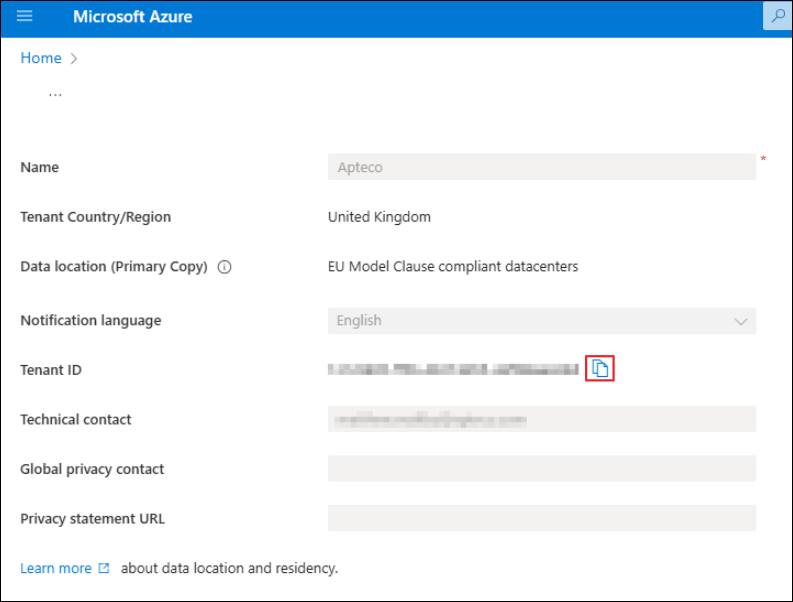
Finding the application ID and client secret
If you've already registered a web application in Azure:
- Log in to https://portal.azure.com.
-
In the Azure services section, select Microsoft Entra ID.
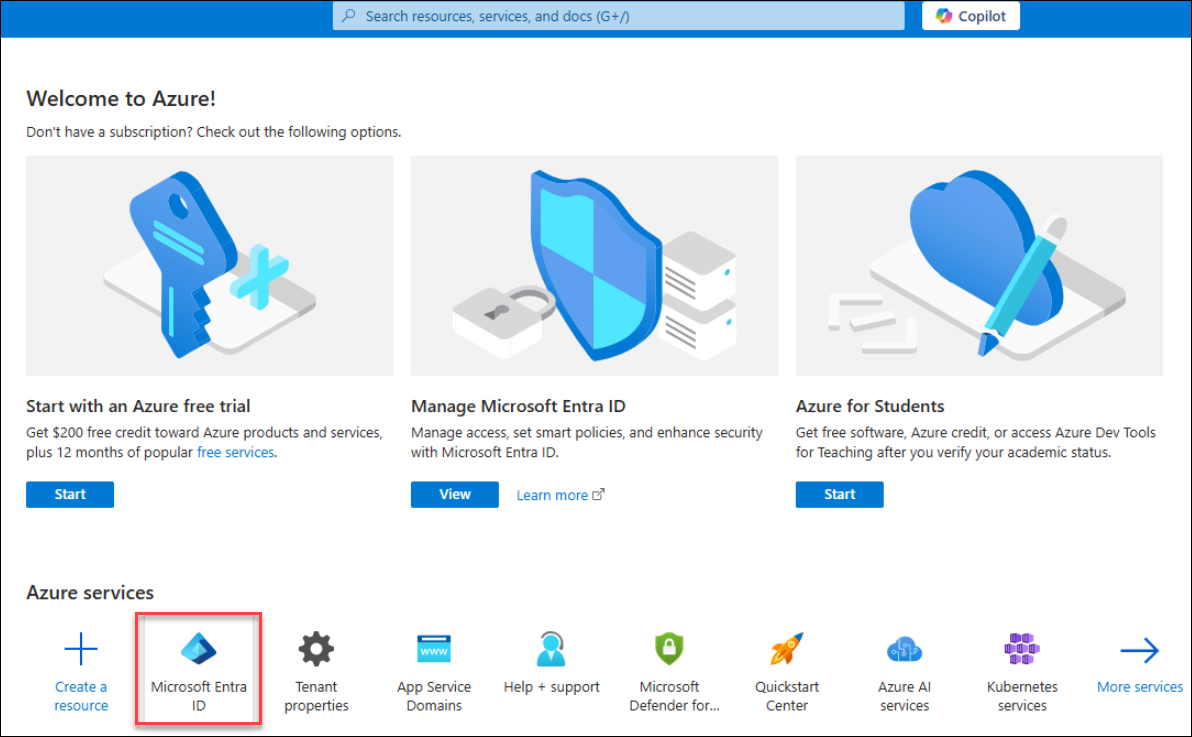
-
Search for the name of the application configured for this purpose (for example, MS Dynamics 365 Sandbox).
-
Select the listing that shows Application (not Service Principal).
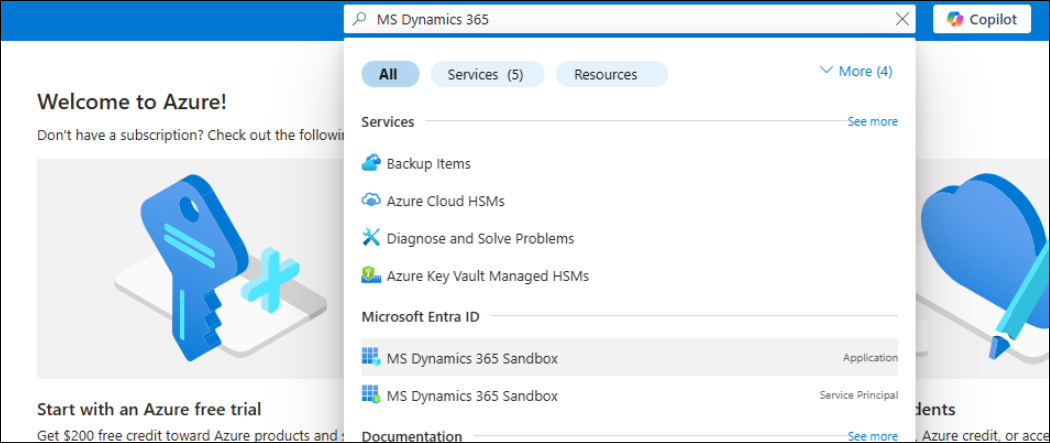
-
Copy the Application (client) ID.
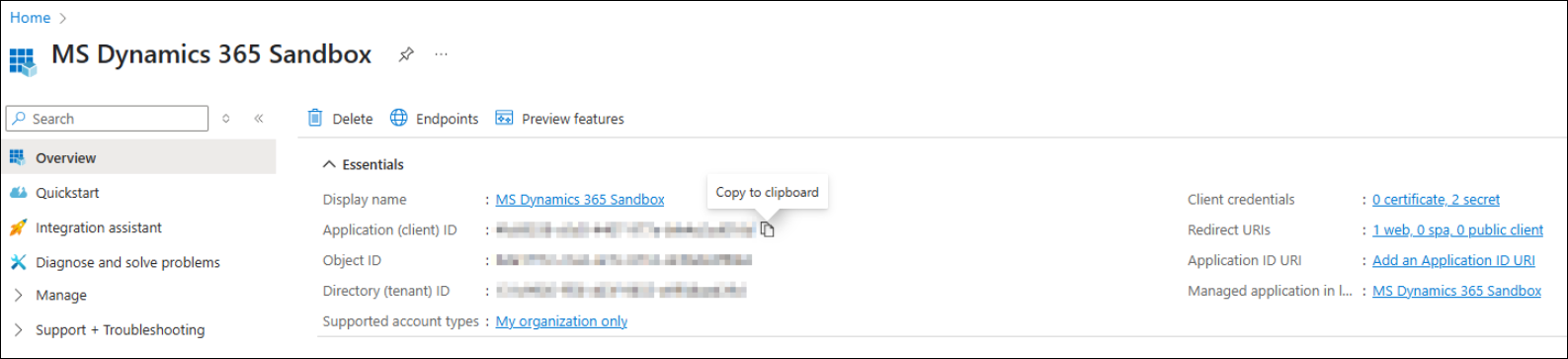
-
Copy the Directory (tenant) ID.
-
Select Client Credentials to view the Client Secret (stored as the Value parameter). If you haven't recorded this, create a new client secret using the highlighted option.
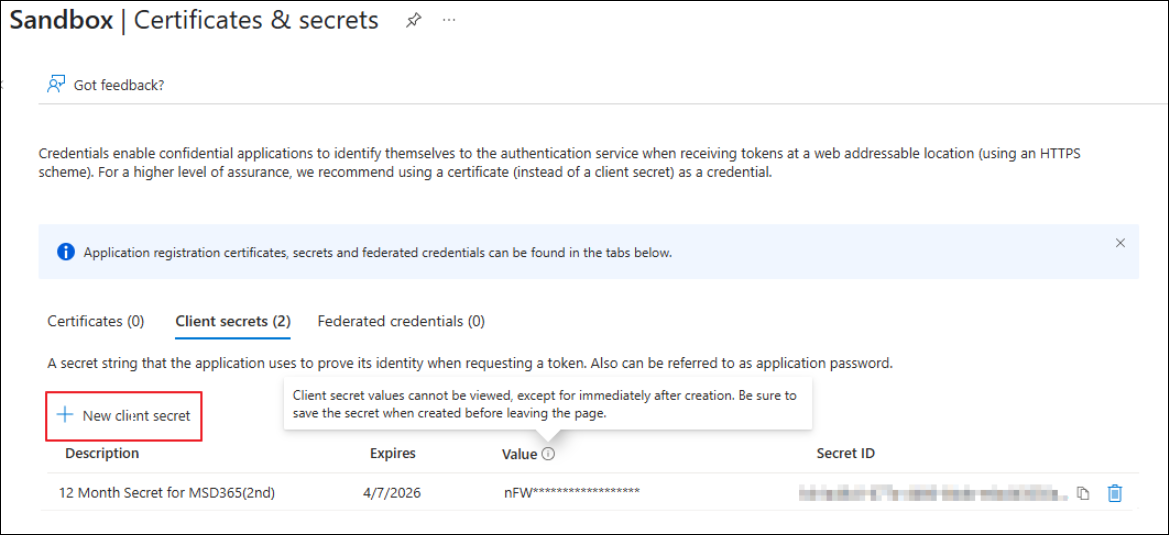
Obtaining the Dynamics 365 instance URL
The instance URL comes from the start of the address shown when you log into Dynamics 365.
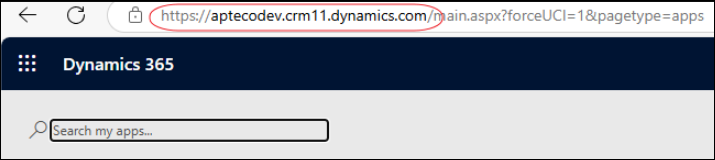
In this case the instance URL is the start of the address up to and including .com: https://aptecodev.crm11.dynamics.com