Upsert to Dynamics 365 from FastStats
To test the upsert, first create a selection in FastStats.
Tip
Create a limited test example as a selection in FastStats before running a full upsert.
Running the wizard
To use the Microsoft Dynamics Wizard:
-
Select the icon from the Output Wizards section on the Wizards panel.

-
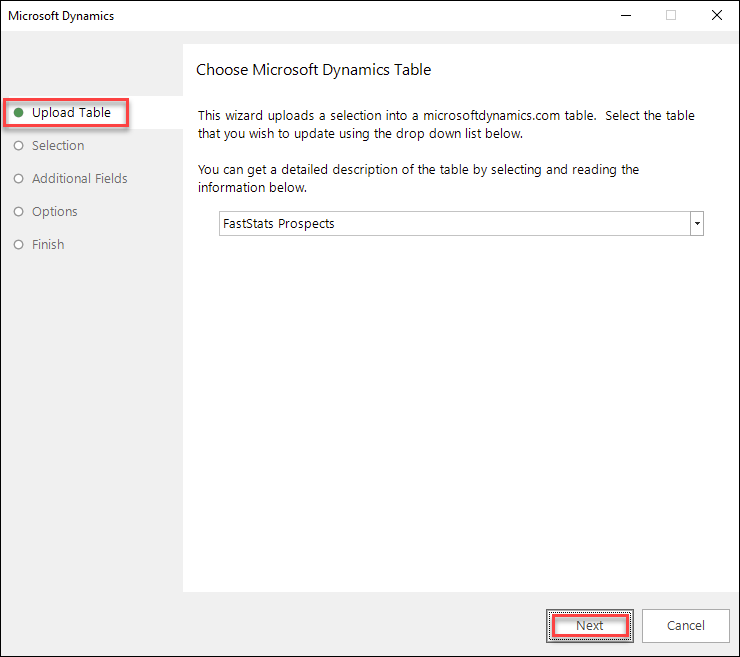
Select the Upload Table and select Next.
-
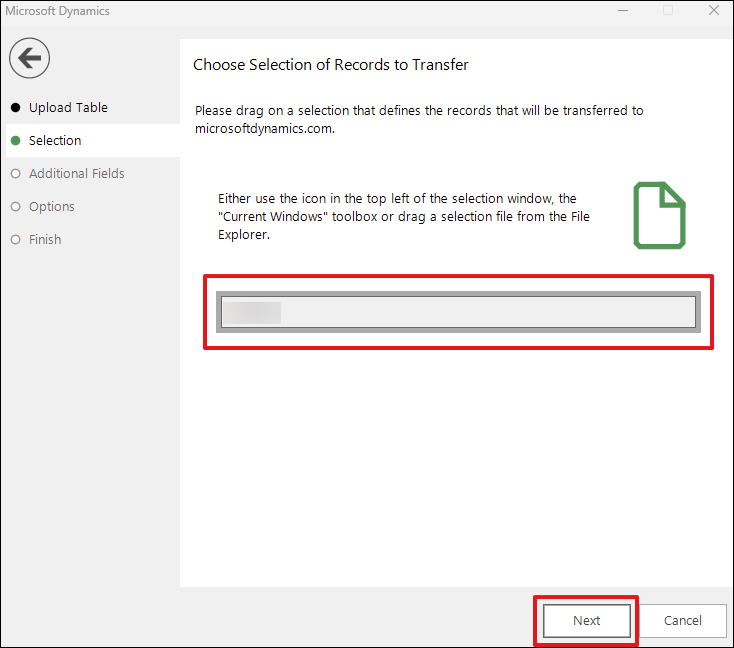
Drag your FastStats selection into the drop zone and select Next.
-
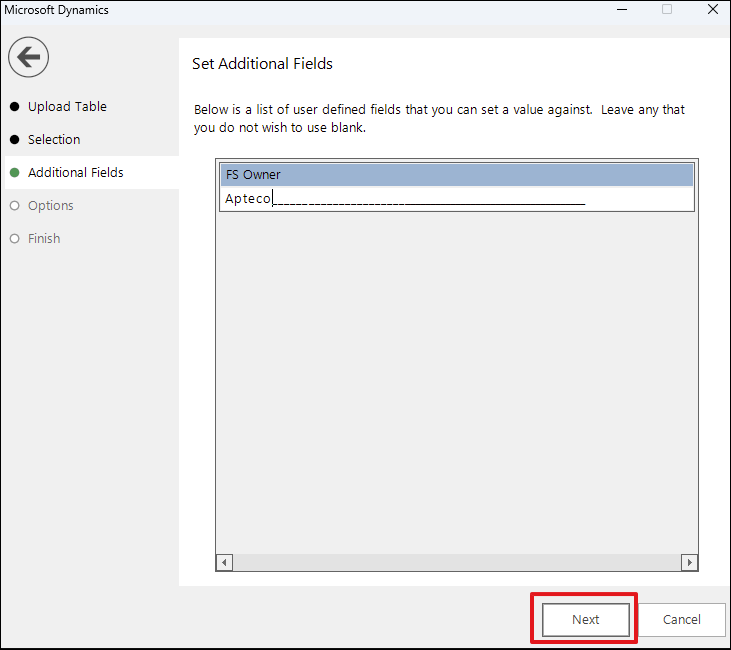
Enter a value for any additional fields and select Next.
Note
This step doesn't apply if you don't have any additional fields.
Note
Each record uploads the additional field value to the corresponding field.
-
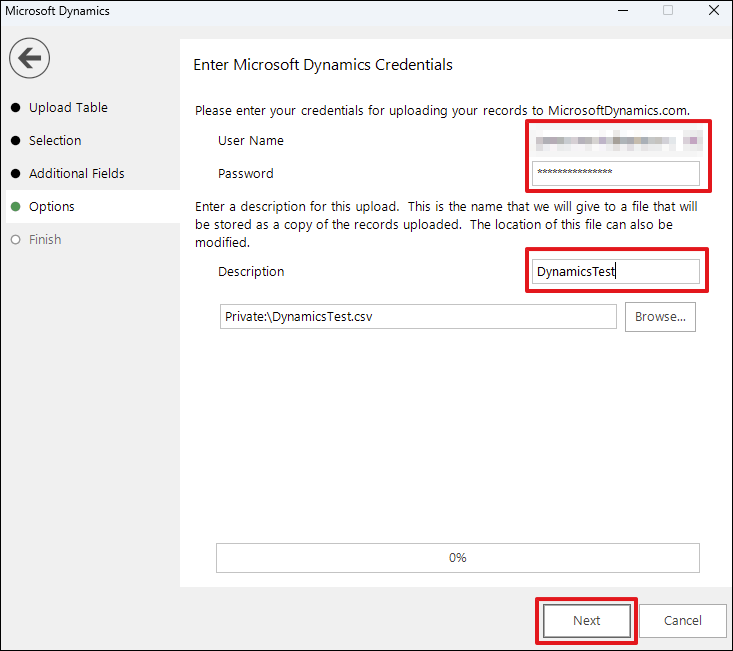
Enter your Microsoft Dynamics Username and Password.
-
Add a Description and select Next.
-
Select Finish when the upload is complete.
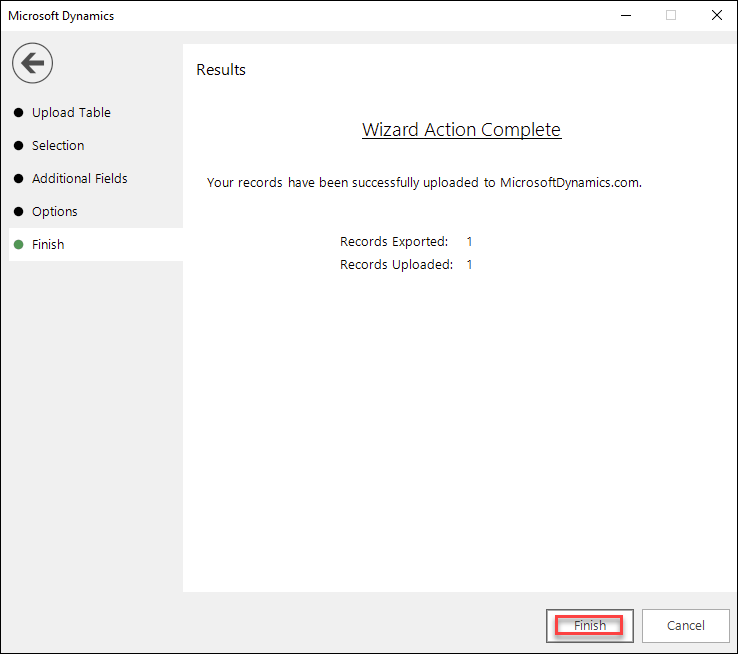
-
Log in to Microsoft Dynamics to confirm the data uploaded successfully.
