Setup and prerequisites
Preparing a Meta WhatsApp account
To use the Meta WhatsApp integration with Apteco software, you need to know:
- Your WhatsApp Business Account name
- Your Meta Business Account name
You also need access rights to manage phone numbers and message templates within Meta Business Settings.
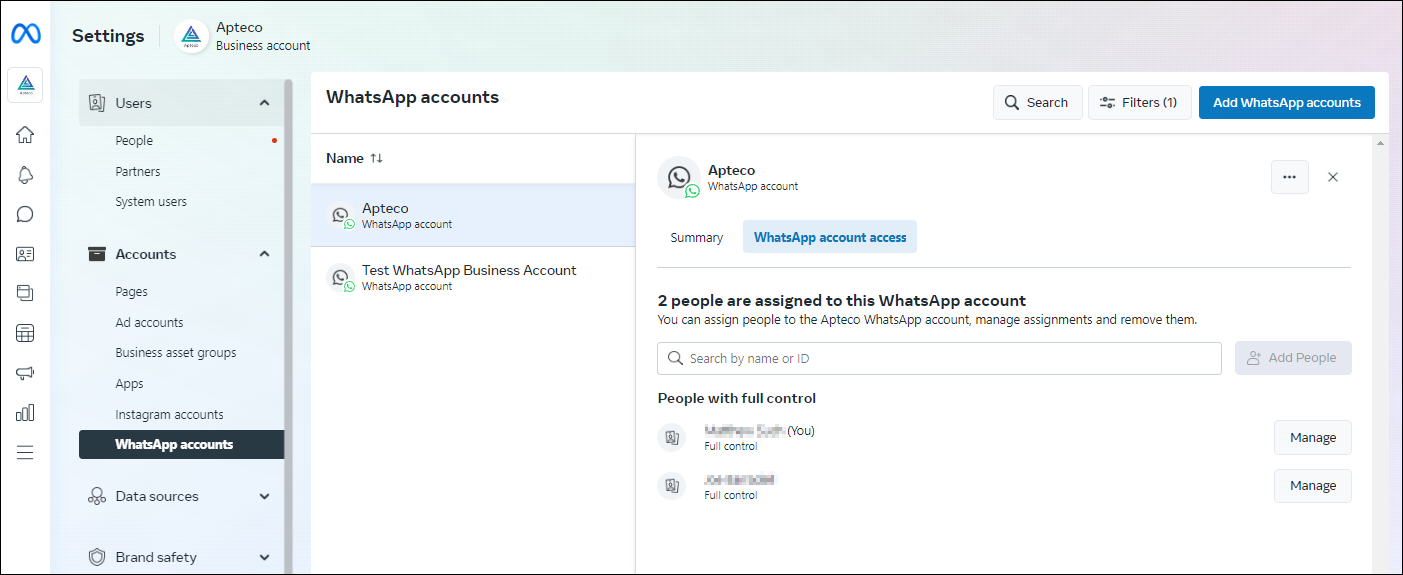
In the WhatsApp Manager accounts, you must have set up:
- Payment details
- Phone number
Note
You must not have already assigned these to WhatsApp or WhatsApp for Business.
When adding a phone number, the display name must be acceptable to Meta's Display Name Guidelines. It must also have approval from Meta before you use it in production.
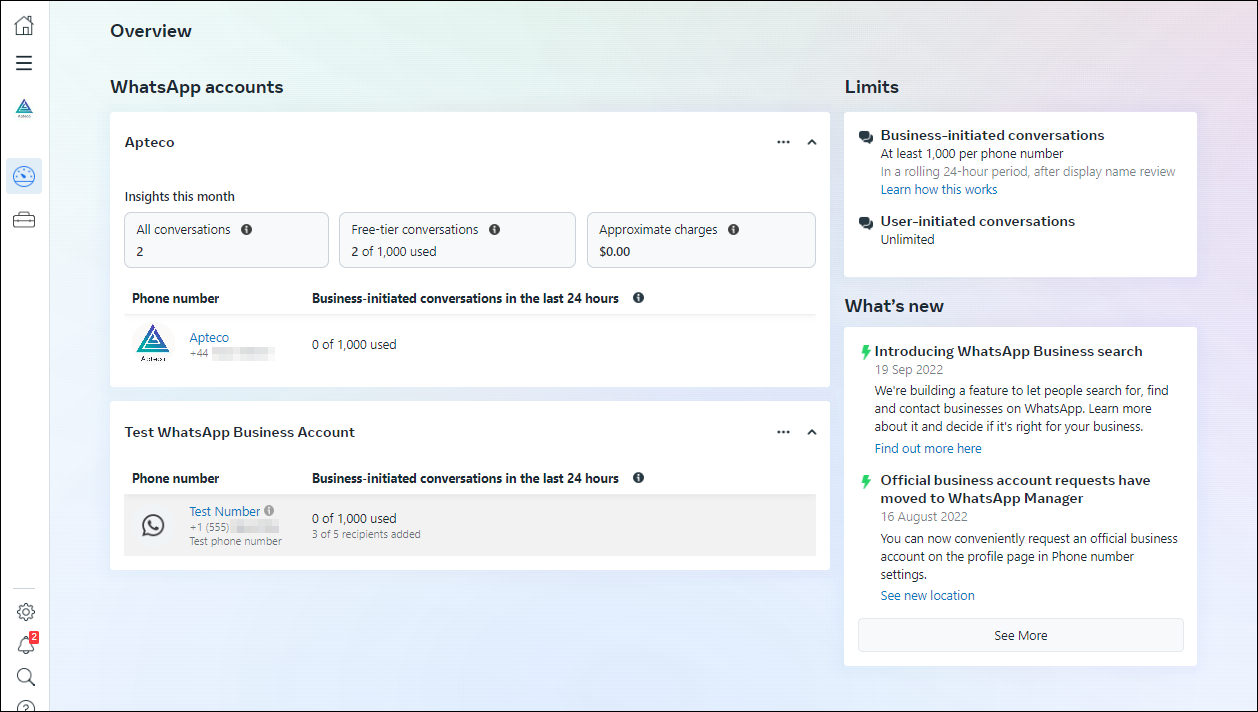
Meta API app
This article provides detail on configuring the Meta (Facebook) parameters on your FastStats Service.
Prerequisites
Make sure you have installed:
- A pre-existing FastStats system with PeopleStage
- A social database
- A phone number for WhatsApp for Business (approved by Meta)
Note
Before proceeding you must have created a Social database. See Creating a social database for more information.
FastStats services
To connect your FastStats Service:
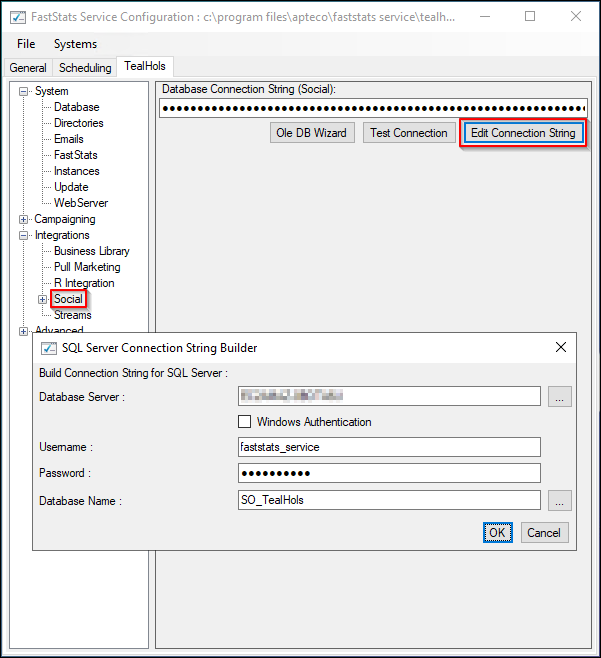
- In the FastStats Configurator, open the FastStats Service Properties for the system, under the System tab.
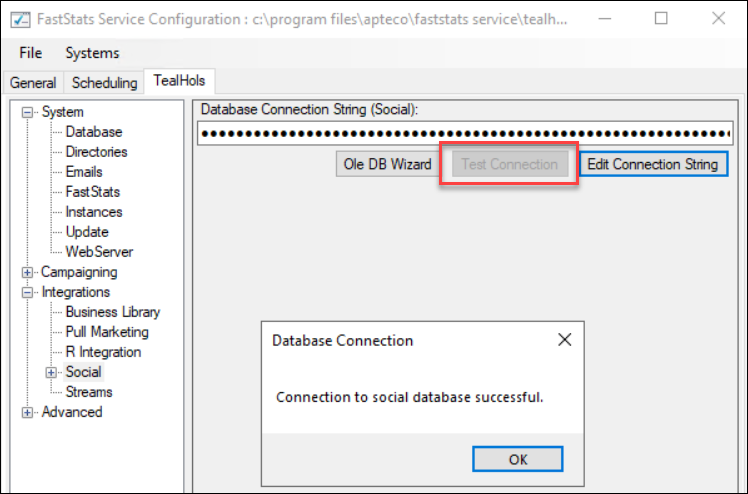
- Expand the Integrations section and select Social.
-
Select Edit Connection String to define the database connection string for the Social database using your FastStats Service credentials.
To test your connection:
- Select Test Connection.
-
Select OK.
Web services
To connect the Web Service:
- In the FastStats Configurator, open the Web Service and go to the System tab.
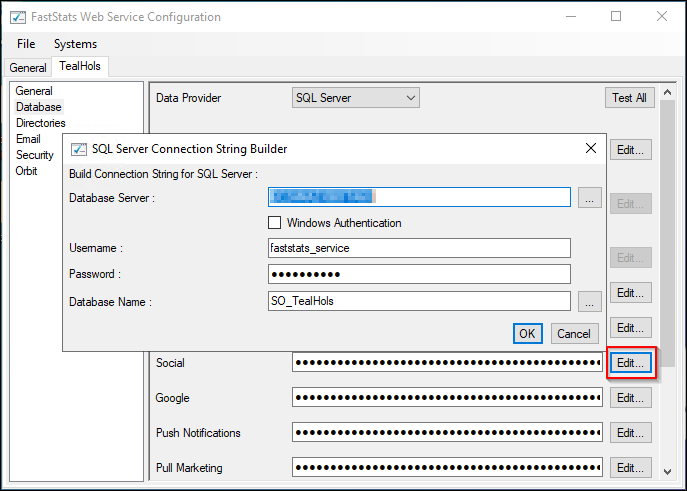
- Under Database, define the database connection string for the Social database using your FastStats Service credentials, then select Edit.
-
Select Test All to check the connections are working.