Viewing collections
To access the Collections screen, click Collections at the top of your screen.
Grid and list view
Use the grid and list view icons in the top right to switch between a grid view and a list view of your collections. Orbit remembers your choice the next time you visit the Collections screen.
Search, sort, and filter your collections
Use the controls in the top right of the Collections screen to find the collection you want:
- Search: enter a keyword to filter the list by collection name
- Sort: click the sort icon to order your collections by Name or Date Created, in either Newest First or Oldest First order
- Filter: click the filter icon to narrow the list down by shared status (All, Shared By Me, Shared With Me, or Not Shared) or creation date
Click a collection to open it.
Select multiple collections
Click a checkbox on a collection to enter multi-select mode. With multi-select mode active, click any other collection to add it to your selection.
Once you've selected one or more collections, use the toolbar that appears to:
- Pin the selected collections
- Archive the selected collections
- Delete the selected collections
Click Select All to select every collection in the current view, or click the close icon to exit multi-select mode.
Opened collection details
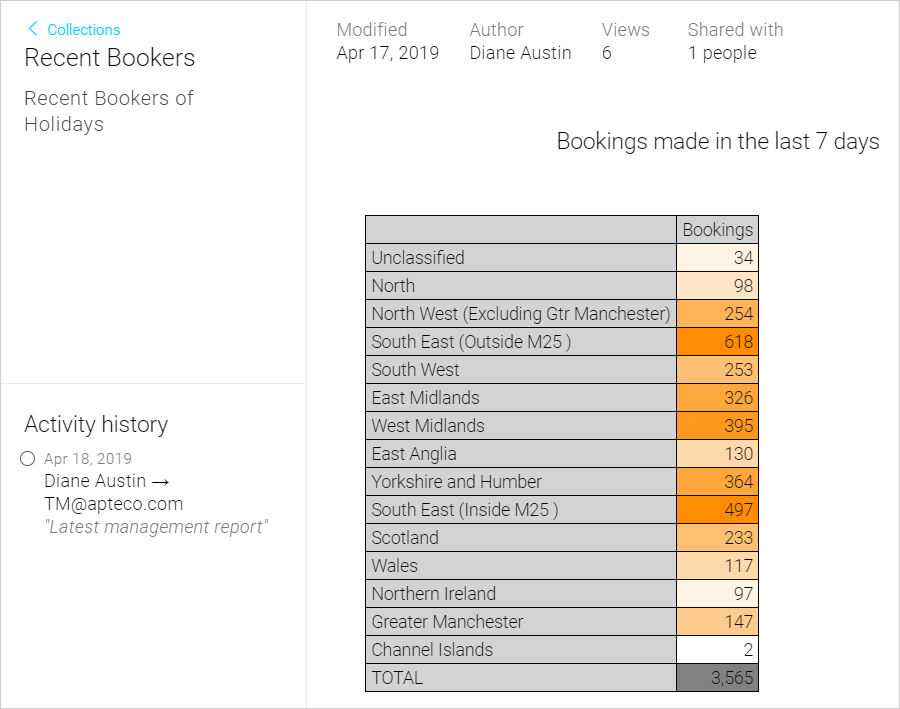
The Activity History panel, located on the left of the Collections screen, allows you to see whether, and with whom, the collection has been shared.
The icons at the bottom of this panel allow you to:
- switch to full screen view
- print the Collection
- share the Collection
The left Activity panel can be unpinned to create more display space using the slide icon:
Further icons can be seen on the right, including the grid and list view icons that switch between a grid view and a list view of your Collections. Orbit remembers your choice the next time you visit the Collections screen.