Organising your diagram
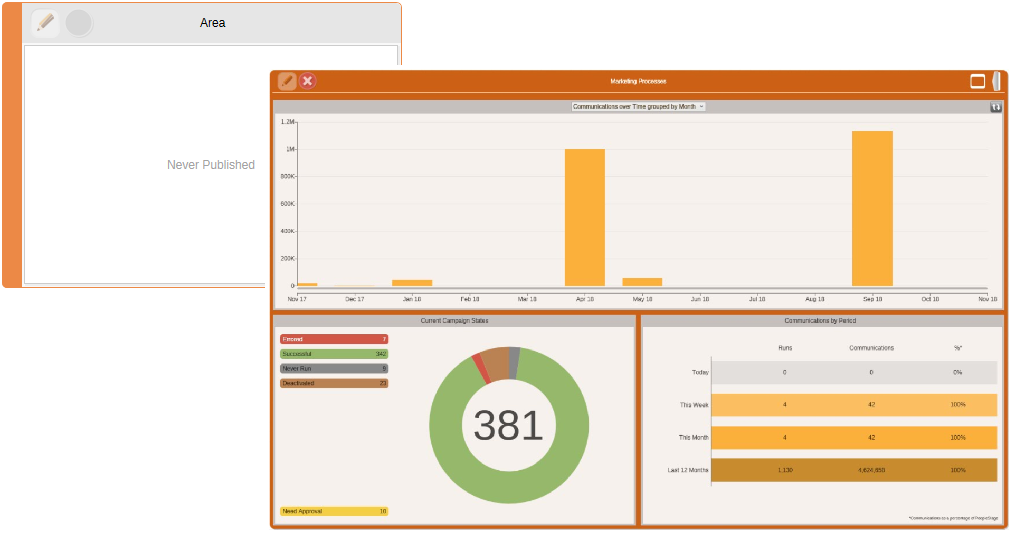
An Area is a group of related Campaigns. Areas can also be grouped into larger Areas.
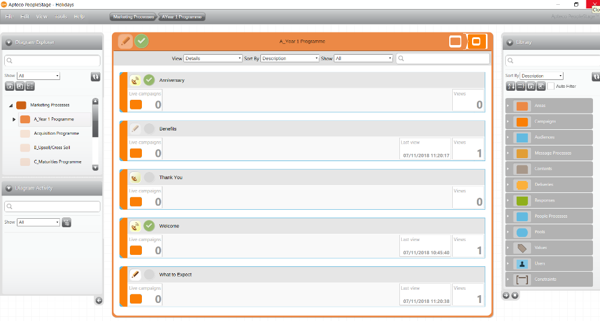
Within the Marketing Processes, campaign Areas can be created, allowing you to suitably manage your communication programmes within their own workspace, e.g. Year 1 Programme Area:
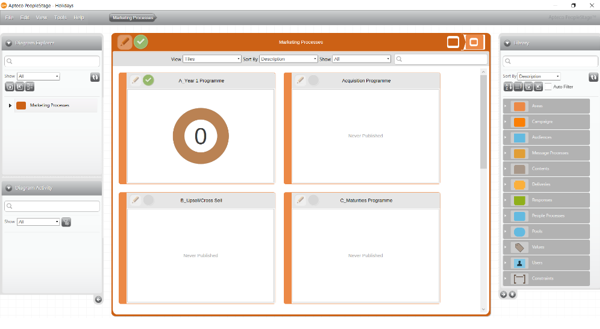
An Area can hold a collection of further Areas or, within an Area, individual Campaigns can be created and executed, e.g. a "Welcome Campaign" within your "Year 1 Programme" Area.
Creating an area
To create a new Area within your diagram:
-
Click on the Campaign Status control icon in the top left of your Marketing Processes diagram and select Plan then Edit Programme.
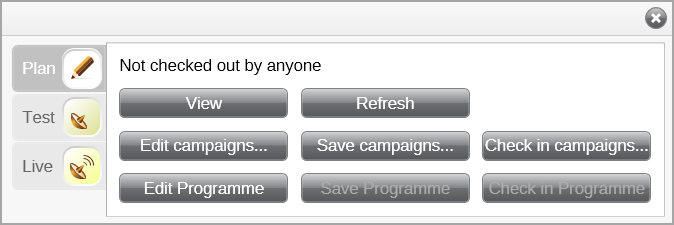
A grey and white grid background indicates that the 'container' – here the highest Marketing Processes level – is now editable. The status control icon is no longer ghosted and, when you click back onto it, you can see who has this 'container' checked out.
-
From the Areas folder in the Library, drag and drop a New Area onto the diagram.
The area will automatically be checked out to you and is immediately editable.
-
Double-click on the word "Area", overtype with the required description and then press Enter to confirm the change.

Note
PeopleStage does not auto-save in the background and, as a best practice, you should regularly save your work. You can do this by clicking back onto the status control icon and selecting Save... - here Save Programme. Saving records the structure of your Diagram and the Areas and Campaigns you create within it. We recommend that you re-label the individual elements used to sketch out your marketing journeys, as this will facilitate and assist you with future reporting. See Reporting in PeopleStage.
Note
Only one person at a time can edit a 'container' – i.e. Area or Campaign. Others will be able to see, but not make changes to, an Area or Campaign which is already checked out. As best practice, once you complete your changes, return to the status control icon and select Check in…. This will save any changes and make the item available for selection and/or editing by others.
Once created, a new Area will show the text "Never Published" or, when you zoom into such an Area, you will see that the "Dashboard information will become available after publishing to Live".