User interface
After logging into PeopleStage you will be presented with the main window where you can plan and execute your campaigns.
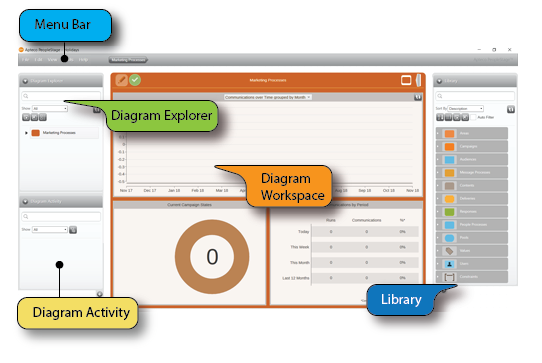
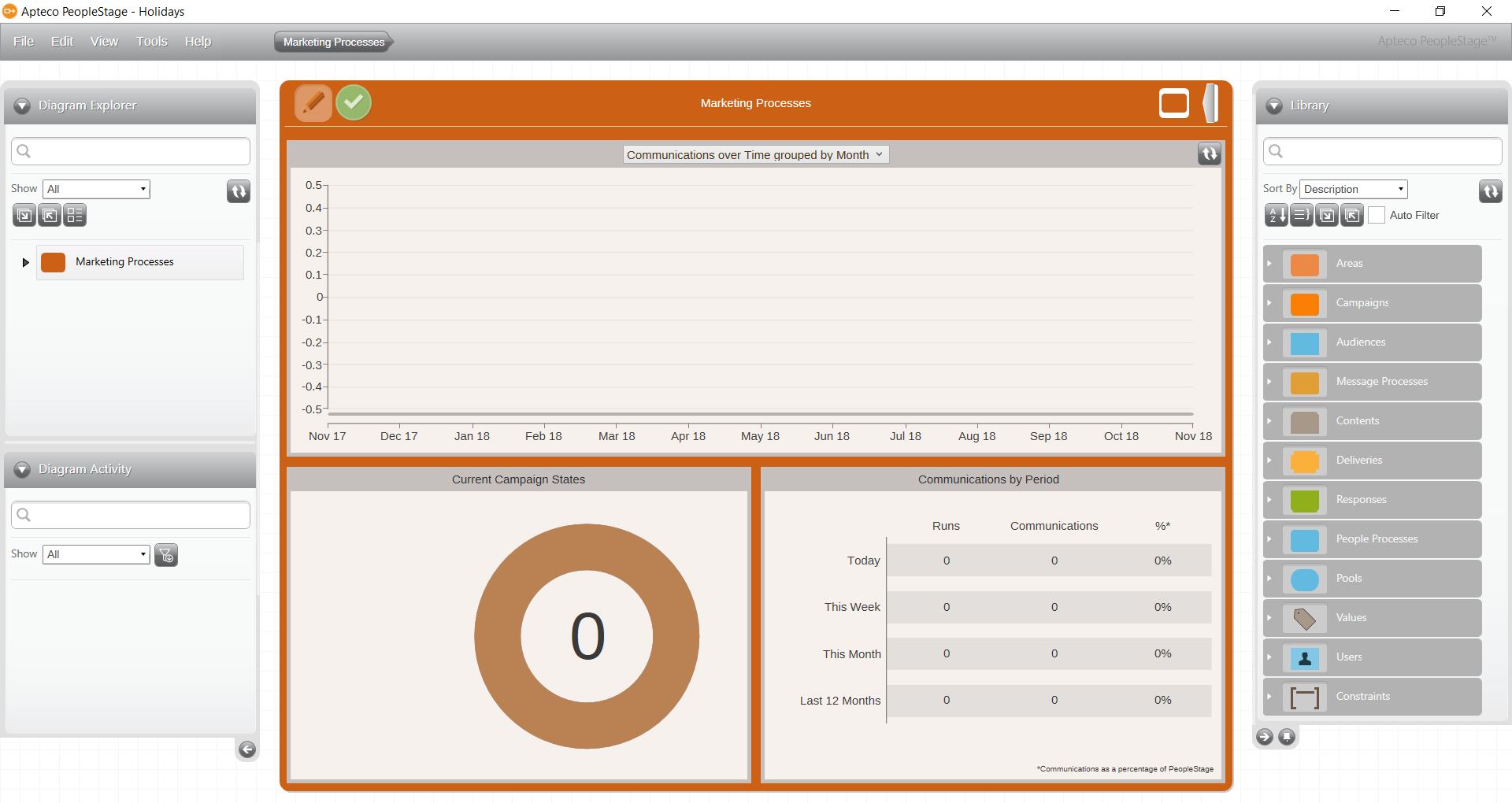
The main window is made up of a number of sections:
Note
A new area will show the text Never Published. The dashboard information will become available after publishing to live.
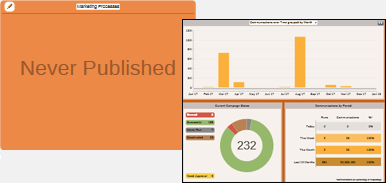
Diagram Explorer
The Diagram Explorer allows you to quickly and easily navigate to any part of your Marketing Processes diagram.
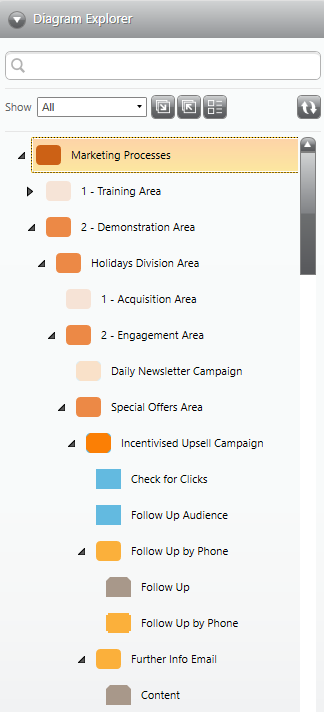
Diagram Activity
The Diagram Activity panel is located bottom left of the screen and displays the requests that PeopleStage is making to the server. Multiple concurrent activities, and the progress on each, are provided by progress bars linked to descriptive text, allowing you to see and monitor activities in progress.
- Clicking a link takes you back to the appropriate area in the diagram
- You can choose to show all jobs being requested or, alternatively filter by name and whether the task is complete or in progress, or toggle to show only major jobs
- The history of completed jobs is automatically removed after 10 minutes
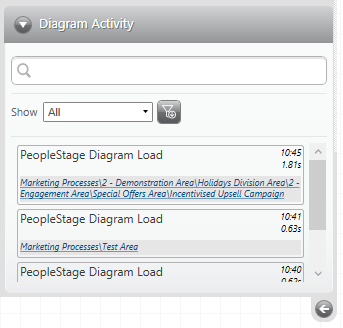
Diagram Workspace
PeopleStage uses a combination of colours and shapes to assist you with the planning process and interpretation of your Marketing Processes diagram.
| Colour | Description |
|---|---|
| 🔵 | Blue is used to represent People, flowing like water through the system, collecting in "Pools" (oval) until they are selected by an "Audience Selection" (rectangular) |
| 🟠 | Orange is used to represent communications at some level: either an individual Delivery or a higher-level process such as a Campaign. Costs are shown in a pink colour, using a common red theme to tie in with the orange communications which incur the costs |
| 🟢 | Green is used to represent Responses and Revenue, using an opposing colour to the Red where costs are incurred: green being positive and red being negative. The shape for the inbound Response is a mirror image of the outbound Content |
See the Library for an overview of all the elements you can use in creating your PeopleStage diagram.
Note
The System Administrator can change the colour scheme if required; however, this will apply to all users.