Salesforce build credentials
If you're accessing Salesforce Sales Cloud data in Apteco Orbit, Apteco's systems generate a refresh token during the sign-up process. This refresh token lets Orbit automatically refresh data visible in Apteco Orbit, without requiring any manual intervention.
Note
A refresh token can become invalidated, either through expiry or another manual process (within Salesforce), causing Salesforce to revoke it.
Salesforce build credentials
Use the Salesforce Build Credentials page to check the status of the stored credentials and update them as necessary.
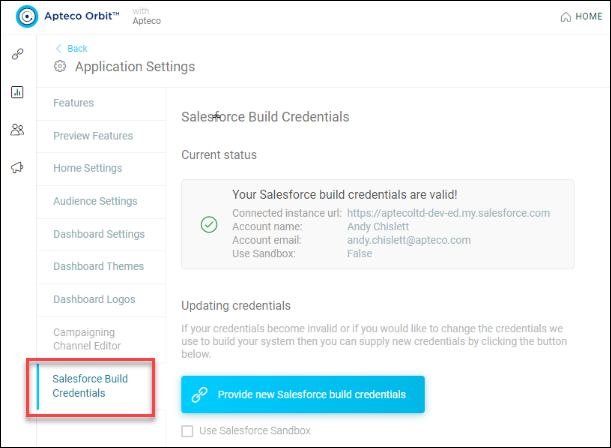
- Current Status: this area displays the status of the existing stored build credentials (a green tick indicates that the stored credentials are valid)
- Provide new Salesforce build credentials: use this button if your credentials are invalid, or if you want to change the credentials used to build your system
To change system build credentials:
-
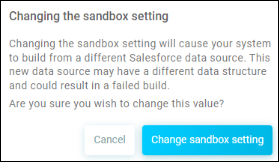
Select Provide new Salesforce build credentials. If you want to use your Salesforce Sandbox environment, tick the optional Use Salesforce Sandbox checkbox (Orbit may show a warning message, as below).
-
Select Continue to Salesforce. This redirects to the Salesforce website for authentication.
-
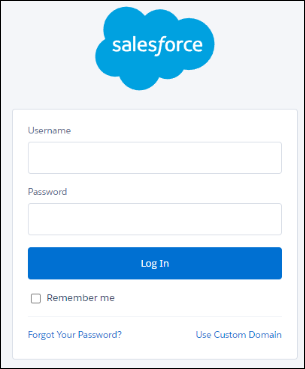
Enter your Salesforce Username and Password, and select Log In.
-
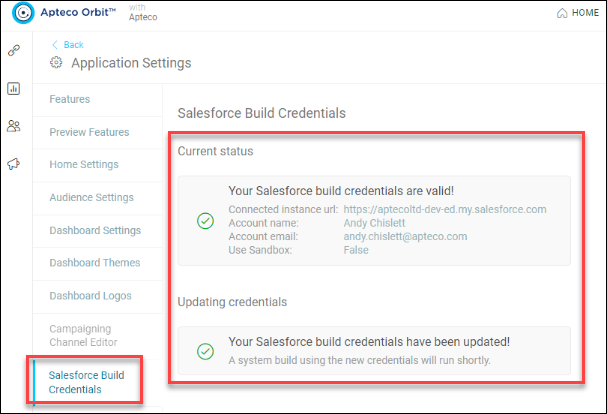
Orbit redirects you back to the Salesforce Build Credentials page. If successful, Orbit displays a confirmation message.
FAQs
Effect of an invalid refresh token
- You can still access and use your Apteco Orbit system. However, it won't reflect the most recent version of your data, as the build process can no longer access your Salesforce data.
Checking whether a token has expired
- If a token is no longer valid, Orbit sends an email to the address associated with the Salesforce account. The system build date also appears within Orbit in the top right corner of the Home screen.